If you’ve tried inserting images and HTML into WordPress taxonomies such as categories, you may have noticed that when you save your changes, the HTML code disappears:
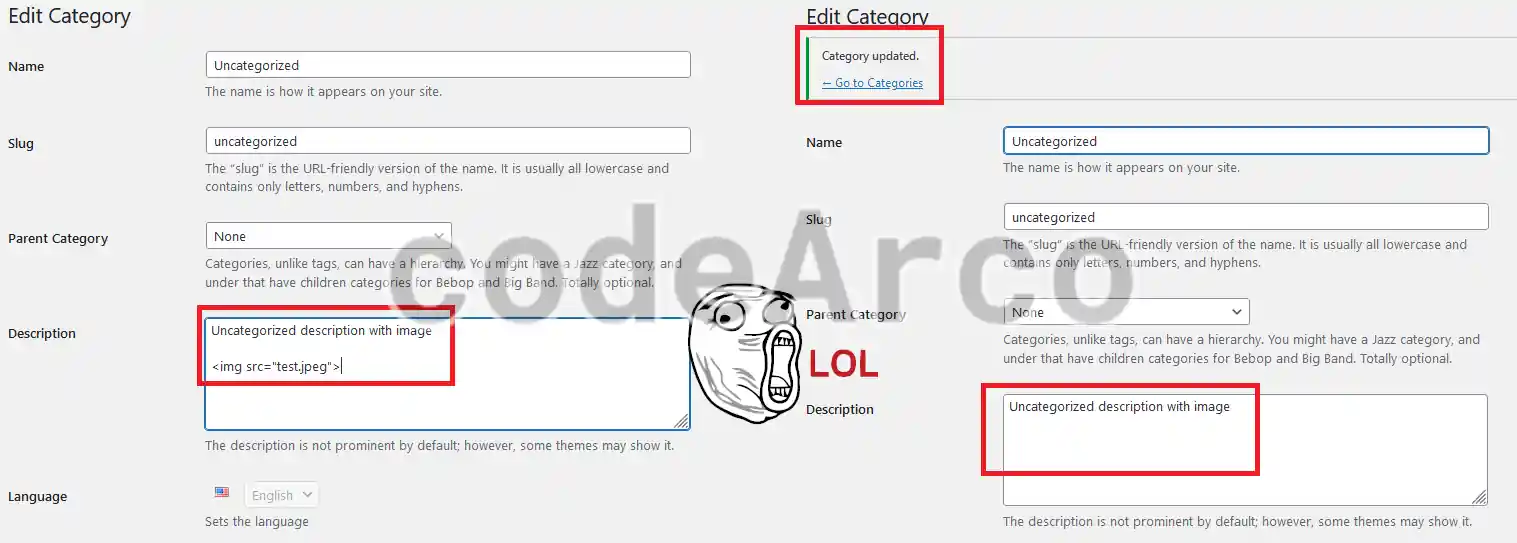
This is due to a WordPress security mechanism that does not allow HTML to be inserted into certain sites on the web, such as the description of a category or tag.
Why insert images and HTML into WordPress categories?
If you have read our SEO course you will know that it is good and advisable to use keywords in the HTML sections such as, for example, <H> headings or <A href> links to improve your SEO positioning in search engines.
You must also remember that, for a category or tag to be indexed by search engines, you must activate category indexing through the Yoast plugin:
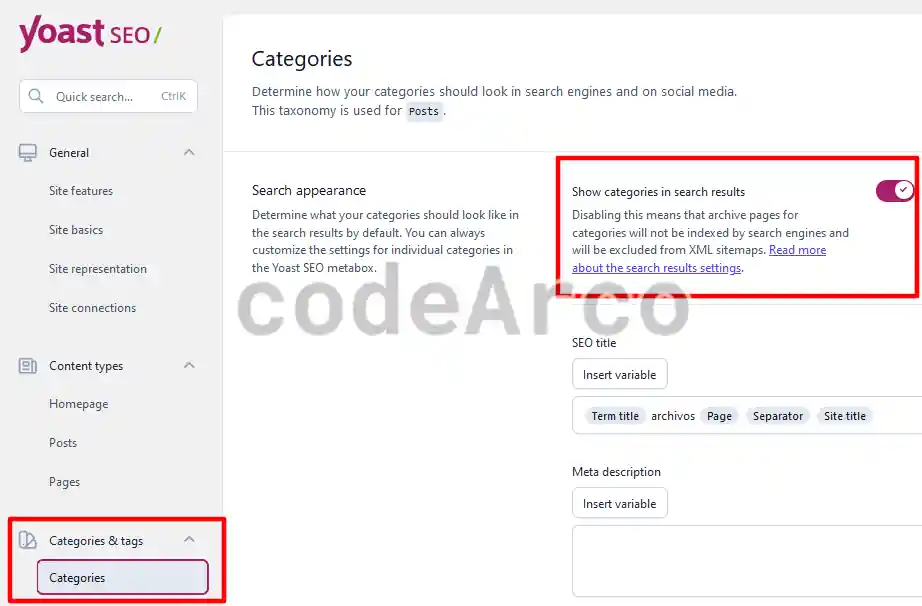
If SEO is not your thing or you have category or tag indexing disabled, consider that there are other advantages of inserting HTML and images into WordPress categories and taxonomies:
- User friendly and attractive website and, therefore, the user will spend more time browsing the different sections.
- Quality web traffic, if you have an aesthetically good website, users will spend more time browsing it and that, in turn, has an impact on your SEO positioning.
- Better brand image since you transmit a professional and quality image.
- Increase in conversions, derived from the previous point, if you give a better image to your audience you will get more conversions.
- Greater online visibility, an aesthetically good and well-organized website encourages users to share it on social networks.
As you can see, the list of advantages is infinite and, as a consequence, I recommend that you activate SEO indexing and HTML descriptions for the categories at least, for the tags I do not recommend it because there can be many and we could say that they are not so important.
How to enable description of categories and taxonomies in WordPress
Once you are convinced about inserting HTML into categories and tags, it is time to take action and follow the steps to enable category description in WordPress and other taxonomies:
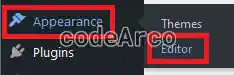
- Open the WordPress theme editor through “Appearance”, “Editor”:

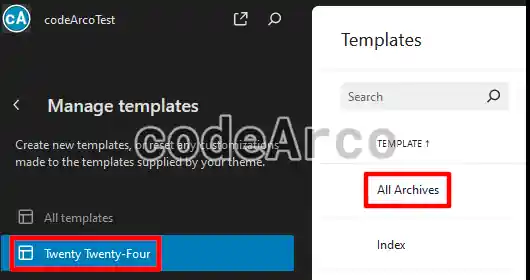
Open WordPress theme editor - Select “Templates”, “Manage all templates”.
- Select “All Archives” within the theme that our site uses, in this case it is Twenty Twenty-Four.

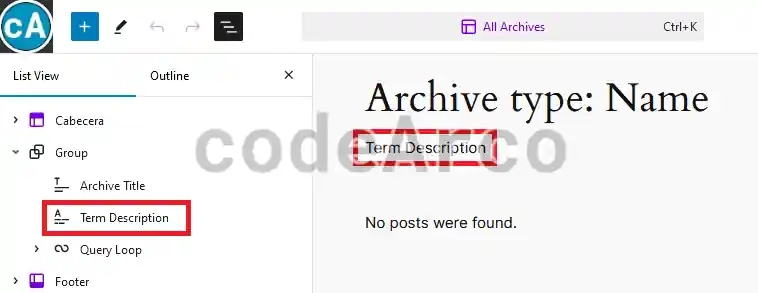
Manage and customize WordPress template - Introduce the “Term description” block wherever you want, in our case we will insert it after the archive title.

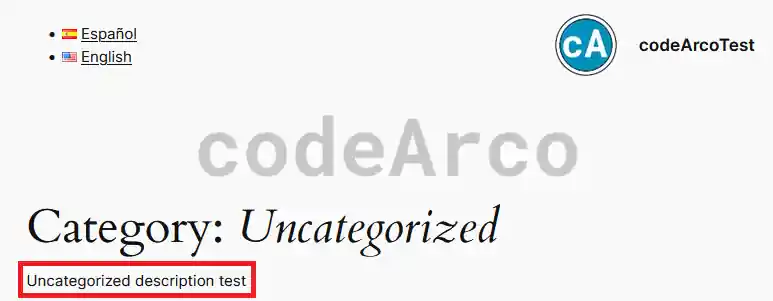
Enable description of categories and taxonomies WordPress - Finally we save the changes and check that its description appears for a specific category:

Check enable WordPress category description
Insert HTML into categories description with Yoast WordPress
This first option is recommended if you use the Yoast plugin. It is the simplest since all you have to do is follow these few steps to insert HTML in the category description with Yoast:
- Install the Yoast plugin in WordPress.

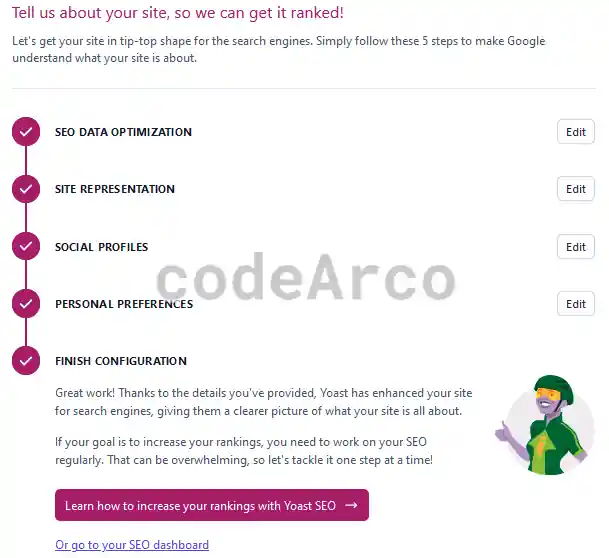
Yoast plugin to insert HTML in category descriptions - Complete the initial configuration of the plugin.

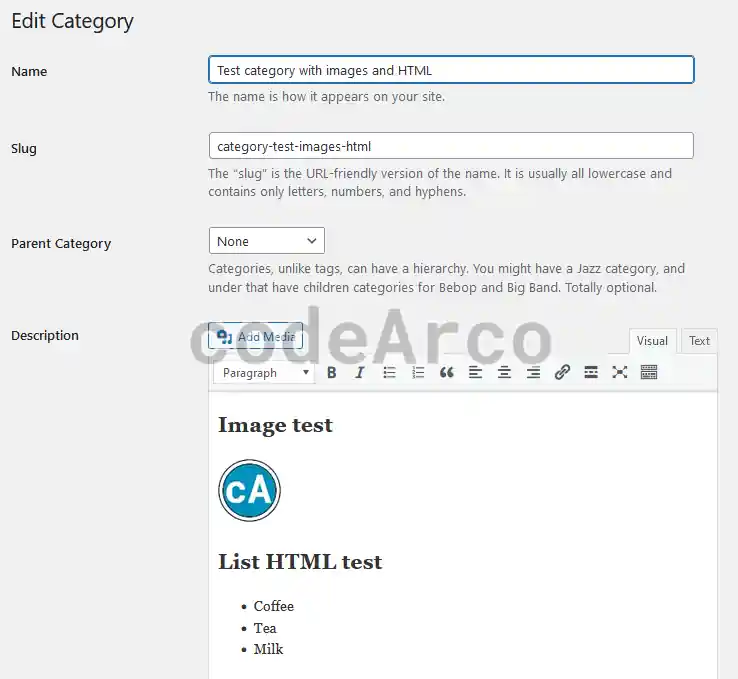
Yoast plugin to enable HTML in taxonomies - Go to “Posts”, “Categories” and use the editor provided by the plugin to edit the HTML of the description of your categories:

Category description with images and HTML with Yoast - Finally, save the changes and verify on your website that the category you just modified has the correct description.
Enable HTML in taxonomies description with PHP WordPress code
This second option is the recommended one if you do not use the Yoast plugin, it is a little more complicated but still, as you will see, we can summarize it in the following steps to enable HTML in the description of taxonomies with PHP code:
- Install the WPCode plugin which allows us, among other things, to insert the Google Tag Manager tag on our website or translate the WordPress navigation menu.
- Add a code snippet via the “Code Snippets” menu, “Add Snippet”. As type select “Add your custom code (New snippet)”.
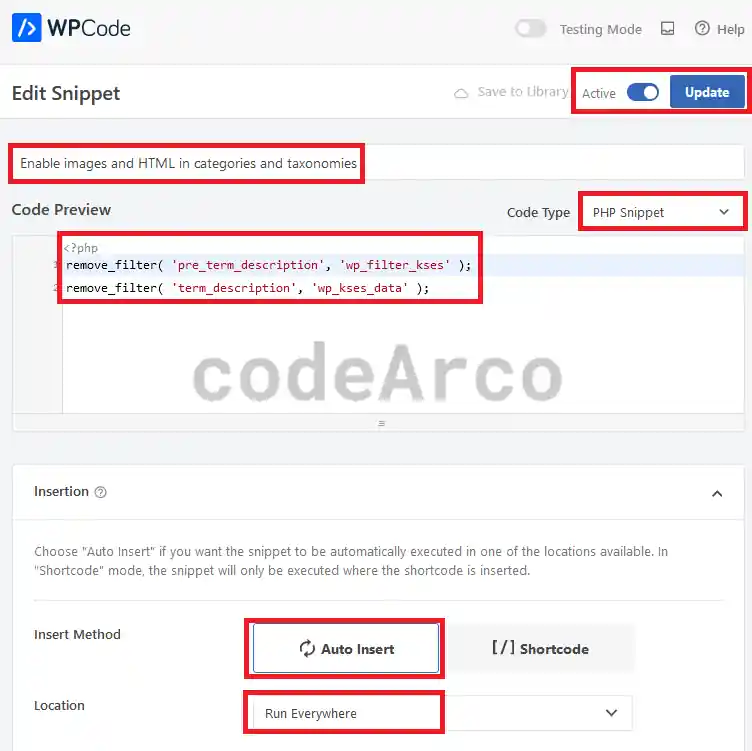
- Configure the PHP code snippet. Give it a descriptive title, select “PHP Snippet”, enter the code attached below, select the “Auto insert” option, select “Run everywhere” and finally activate it at the top right and save the changes.
remove_filter( 'pre_term_description', 'wp_filter_kses' );
remove_filter( 'term_description', 'wp_kses_data' );
PHP code to insert HTML in category description - It should be noted that the first line “
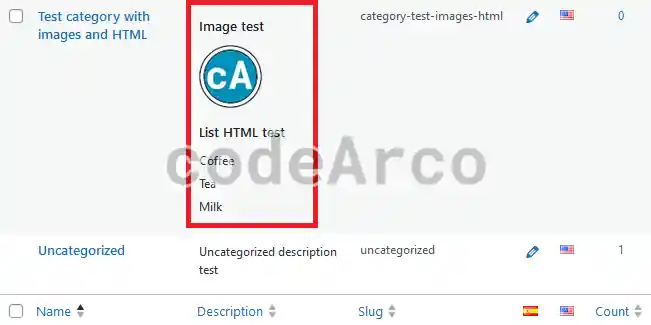
remove_filter( 'pre_term_description', 'wp_filter_kses' );” is enough for us to insert HTML into the category descriptions, however, the second line “remove_filter( 'term_description', 'wp_kses_data' );” allows us to view this description correctly formatted on the WordPress list category table:

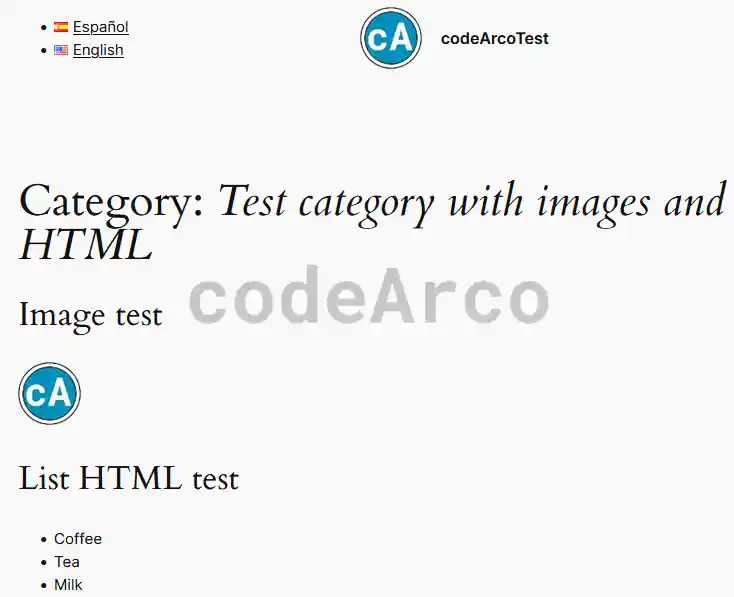
Description of categories with HTML in list - Finally, the only thing left is to check that the category description with images and HTML works correctly:

Check category description with images and HTML