If you have WordPress installed on localhost with XAMPP you may want to test your website from your mobile device to check, through a real device, its mobile compatibility or mobile friendly. Well, to do this, below we will explain how to access WordPress localhost from other devices on the local network:
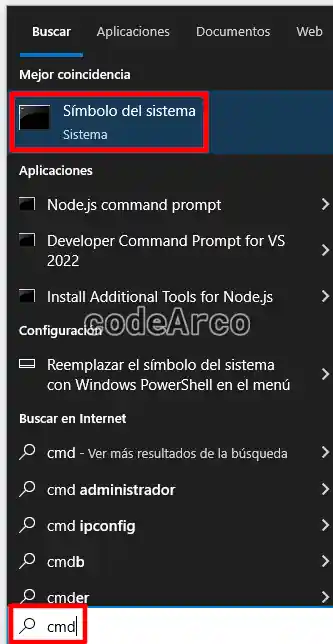
- Access the Windows console, to do this type “cmd” in Windows search and select the “Command Prompt” option.

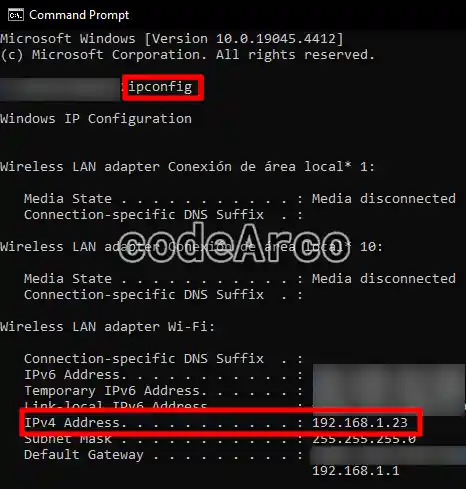
Access the Windows console - Get the IP address of the computer where we have XAMPP installed with WordPress by executing the “ipconfig” command and noting the value of the “IPv4 Address” line.

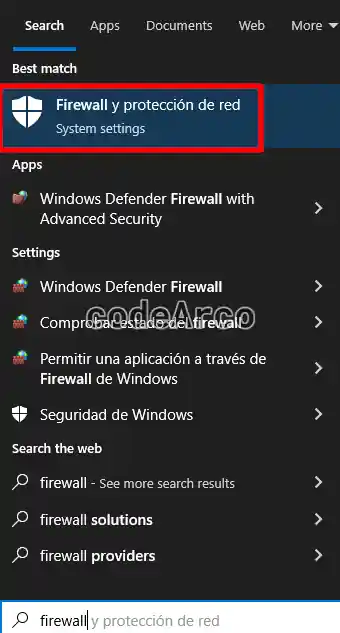
Get localhost ip address - Open the Windows firewall through the “Firewall and network protection” menu option.

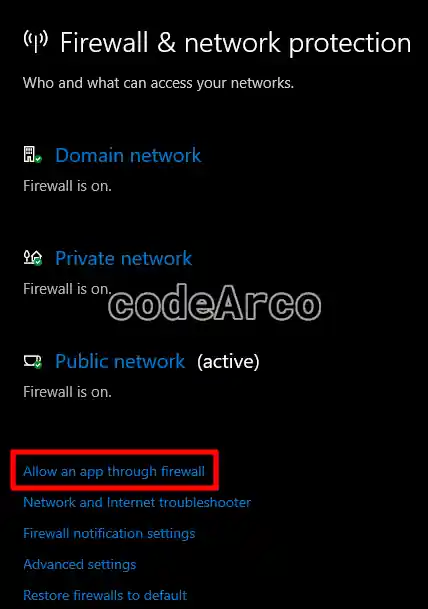
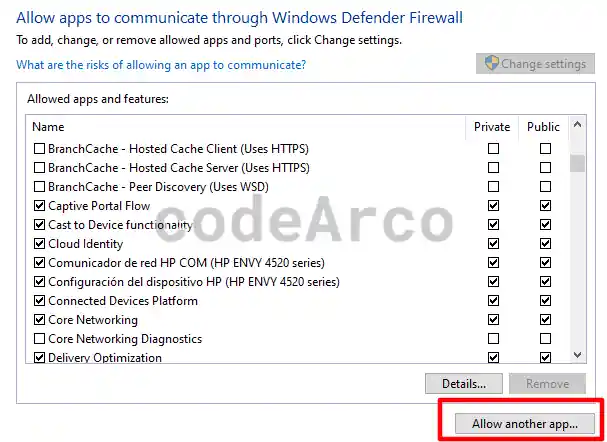
Open Windows firewall - Access the applications allowed in the firewall through the “Allow an app through firewall” option.

Allow an app through firewall - Add “Apache HTTP Server” to the list of allowed applications from the “Allow another app…” option. The path, if you have not changed the default one in XAMPP, is “C:\xampp\apache\bin\httpd.exe”, in addition, it is possible that you already have this application in the list so this step would not be necessary.

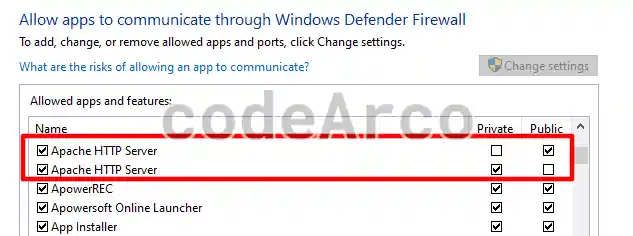
Allow Apache HTTP Server firewall Windows - Configure “Apache HTTP Server” by selecting “Private” and “Public” and checking the box on the left that indicates whether or not an application is allowed through the Windows firewall.

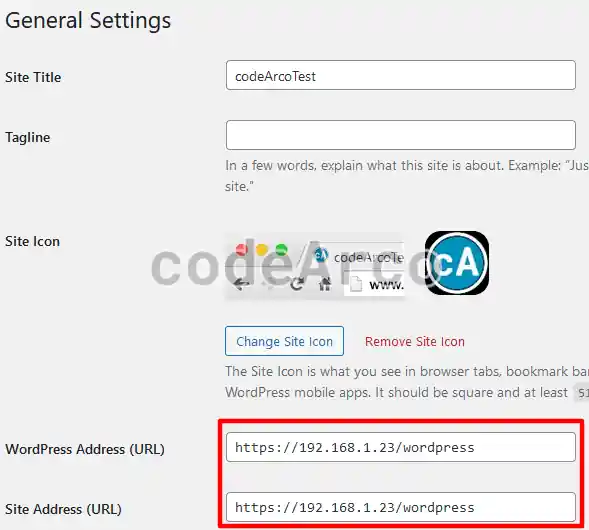
Configure Apache HTTP Server firewall Windows - Change the WordPress address to the IP that we noted previously through “General Settings” of WordPress.

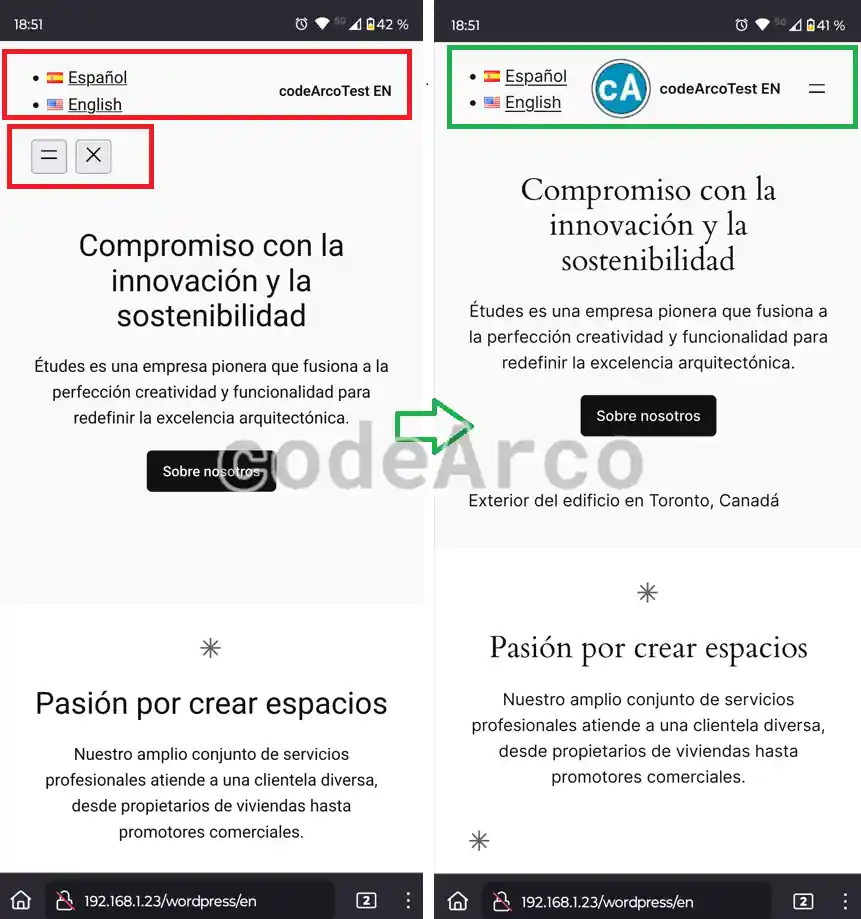
Change localhost address WordPress - The previous step is necessary so that WordPress images, links or styles load correctly on other devices. If we skip this step we could access WordPress localhost from other devices on the local network but the web resources would not load correctly.

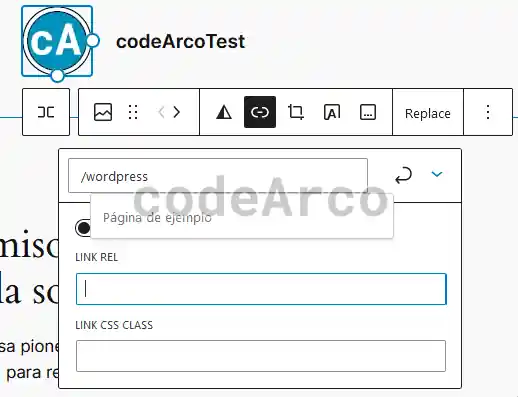
Test localhost address change WordPress - Review and fix WordPress links so that they are relative paths instead of absolute paths. We have an example of this in the site icon that, if we click on it, does not redirect us to the home page correctly, simply insert an image and as a link set the path relative to the homepage of your website.

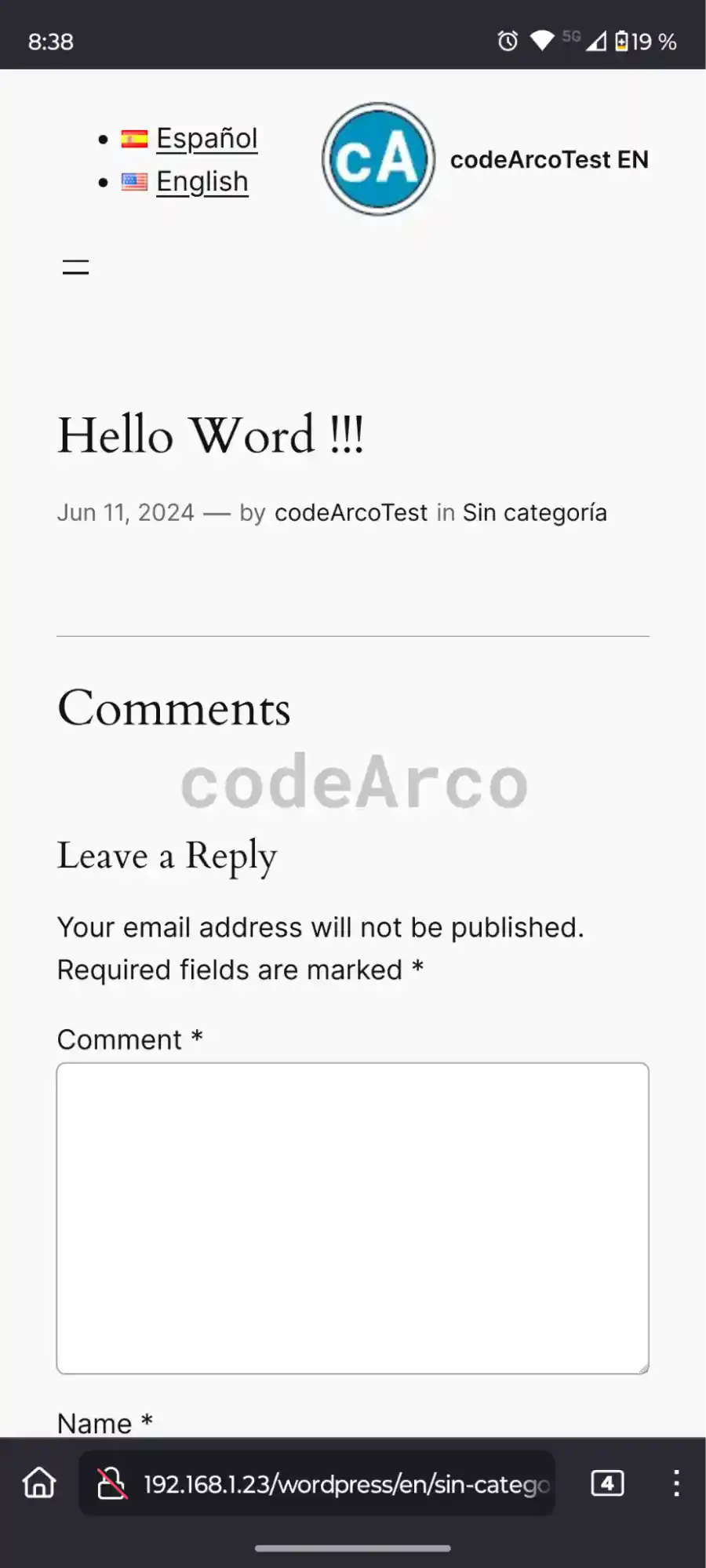
Review and fix WordPress localhost links - Finally we verify that we can access WordPress localhost from our mobile phone connected to the local network through the route “https://ip/folder-wordpress-htdocs”.

Access WordPress localhost from our mobile phone connected to the local network