
I recently decided to optimize my workflow for creating posts in WordPress. Until now, I used Google Docs to write articles, and from there, I copied the plain text content to WordPress and then formatted it. This required working twice, first in Google Drive and then in WordPress.
The first option I considered and tried was the Gutenberg block editor for WordPress, but for several reasons, I wasn’t entirely convinced. Don’t get me wrong, I think it’s a good post editor, but I personally prefer the simplicity and efficiency that Markdown provides.
As an alternative to Gutenberg I considered Markdown, and after some research on Markdown editors and their compatibility with WordPress, I decided to use this language to structure documents simply and efficiently.
Steps to use Markdown in WordPress
This is the easiest step, just follow these steps to use Markdown in WordPress:
- Copy the Markdown text, first select it, and then copy it with
Control+C. - Paste the Markdown into WordPress with
Control+Shift+Vwithin the Gutenberg block editor. It’s important to use the previous command (notControl+V) to paste without formatting, as certain Markdown editors, such as VSCode, copy formatted content, and when pasting it into WordPress, it won’t be able to interpret it correctly.
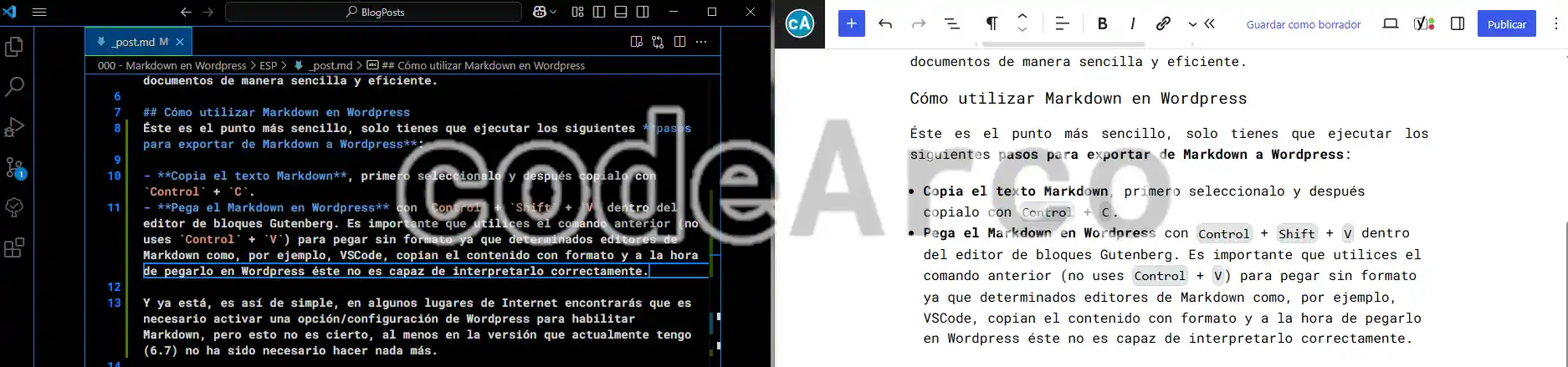
And that’s it, it’s that simple. In some places on the internet you’ll find that you need to activate a WordPress option or setting to enable Markdown, but this isn’t true, at least in the version I currently have (6.7), nothing else has been necessary.
Advantages of using Markdown
Some of the most notable advantages of Markdown are:
- Simple and efficient. Writing in Markdown is incredibly simple once you’ve learned it and exporting it to WordPress only takes five seconds. We don’t need to know complex tags or commands to create documents, nor do we need to memorize complicated keyboard shortcuts to structure and format them.
- Focused on content, not formatting. Markdown’s strength is that it allows you to focus on creating content or taking notes, leaving everything else aside. The only thing you have to worry about is the content itself and the basic structure of the document.
- Easy to learn. Learning the basics of this language won’t take you more than five minutes, you can follow the Markdown tutorial I provided at the beginning of this post.
- Lightweight, takes up little space. Since a Markdown file is simply a text file with an
.mdextension, they take up very little space, unlike files generated with any other advanced text editor like Office. - Software and platform independent, you can write in Markdown from any program that allows plain text editing, like the Notepad that comes with any operating system. This means you can write and read from any device and operating system.
- Compatible with other programs and languages. There are many programs such as WordPress, Google Docs, Notion and Obsidian that allow you to import and export content in Markdown. It is also compatible with other markup languages, such as HTML. There are also libraries that allow you to parse, manipulate, and process documents of this type, and easily convert them to other formats, such as Markdig for .NET.
- Easy cloud synchronization. Although it’s not a default option in Markdown, we can easily sync it. You can use Google Drive or OneDrive to sync all your notes the same way you would any file on your computer.
An alternative for syncing Markdown is to use Git. Although this option requires minimal knowledge, you can create a repository with your notes and access them from anywhere through GitHub or GitLab. - Highly customizable. If you use a simple notepad to write and read Markdown you won’t be able to customize it, but if you use slightly more advanced tools like VSCode or Obsidian, you’ll be able to customize anything you want through extensions and configuration files.
Best Markdown editors
Below, we’ll look at what I consider to be the best Markdown editors on the market today:
- VSCode, a powerful code and plain text editor available for any platform and operating system.
This is my personal recommendation, along with GIT. You’ll find all the functionality you need to write articles in WordPress and Markdown by default, although, as we’ll see in another post, you can customize this program as much as you want through extensions and configuration files, such as changing the Markdown preview style and syntax.
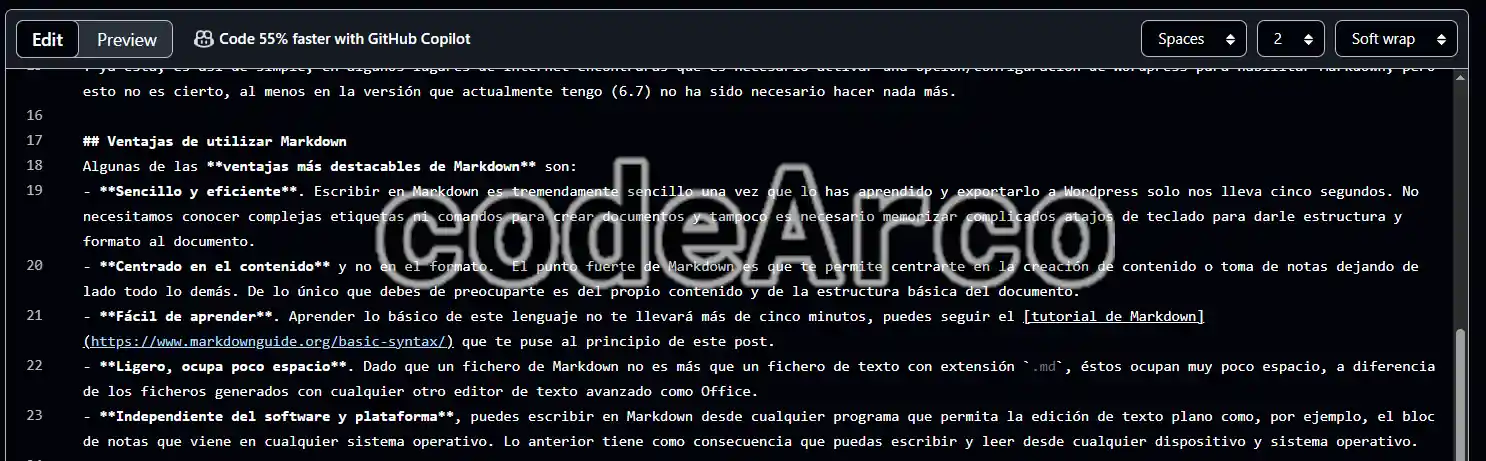
As an alternative, you have the online version of VSCode. - GitHub, a website that allows you to manage your repositories through GIT completely free of charge.
It also allows you to edit Markdown files online from any browser. This is the option I use if I need to edit my WordPress posts from my mobile device since it’s cross-platform.
Alternatively, GitHub has an online VSCode editor.

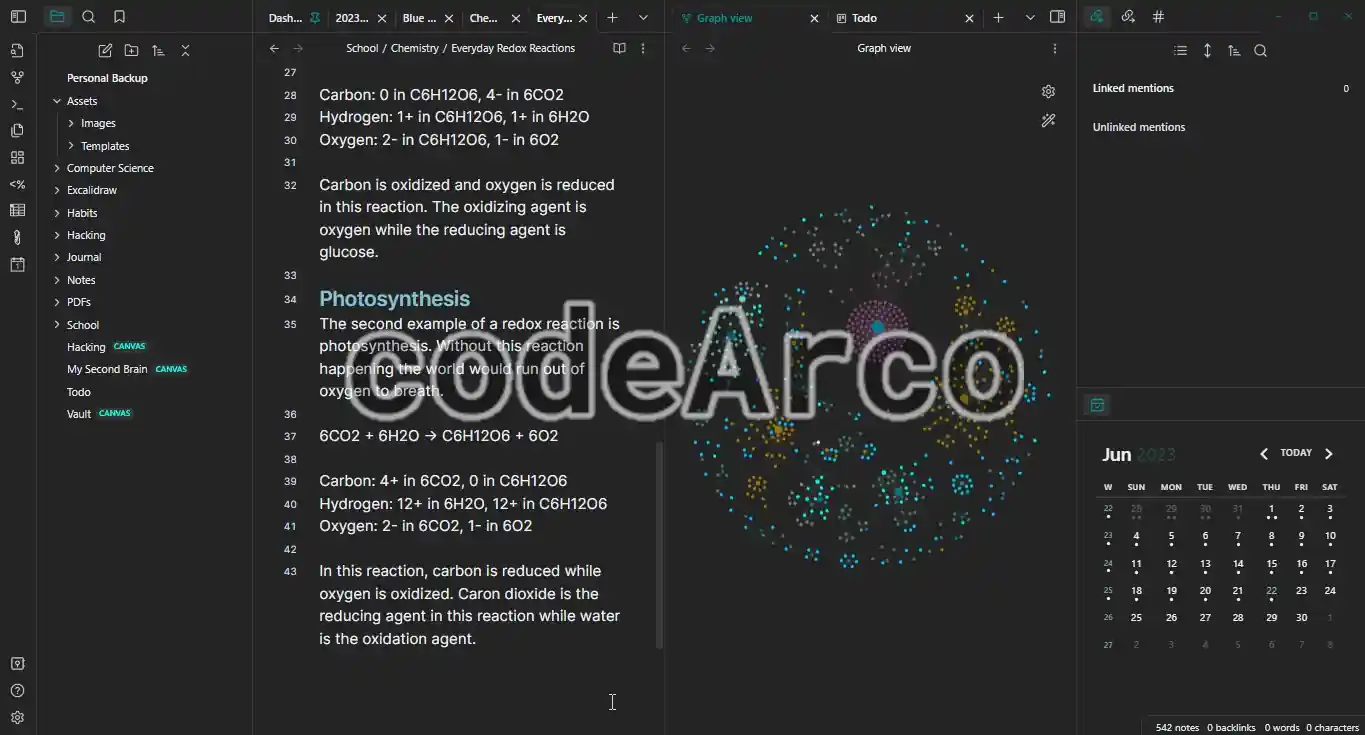
GitHub best Markdown editors - Obsidian, one of the most widely used applications for taking and organizing notes in Markdown format. Similar to VSCode, it is easily expandable through extensions and configuration files. We can also sync our Obsidian Markdown notes to the cloud via Git, as we’ll see later.

Obsidian for taking notes in Markdown - Notion, a website that allows you to manage tasks, backlogs, notes, etc. Although it’s not a Markdown editor per se, it does offer the ability to easily write, import, and export Markdown files.
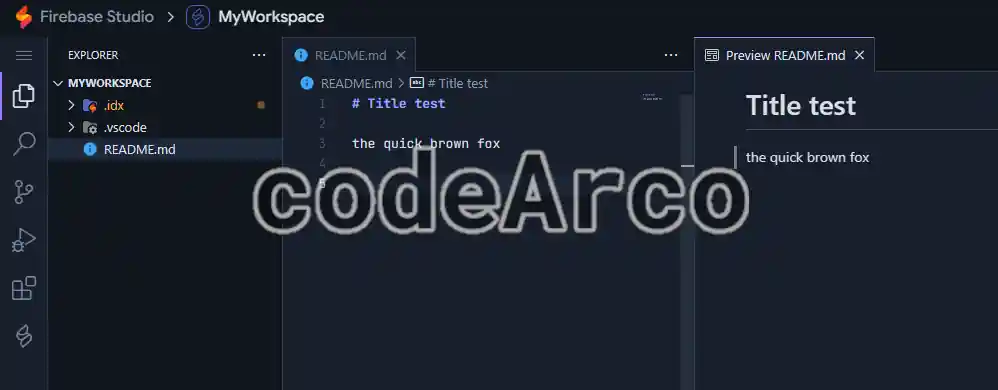
I use it as my “second brain”, it’s where I keep all my notes, to-dos, project backlogs, etc. Personally, I don’t use it for taking Markdown notes, although it could be used perfectly because it’s a website/application that, if you have an internet connection, will sync constantly like Google Docs. - Firebase Studio. Very similar to the online version of VSCode and GitHub Dev, in fact, it uses the open-source VSCode engine (Code OSS) as the basis for its editor. The great advantage of this editor is that it’s completely online, you won’t need additional tools like Git to sync your files. This is a disadvantage, since you’ll need a constant internet connection.

Firebase Studio for Markdown files
Markdown cloud synchronization tutorial
One of the things I needed when choosing a Markdown editor to write WordPress posts was the ability to write from any platform, device and operating system. My setup to access my Markdown notes and articles from anywhere is:
- For desktop devices I use VSCode and GitHub. Since VSCode comes with a built-in tool for managing GIT repositories, it’s incredibly easy to keep it synchronized across multiple computers, as we’ll see below.
- For mobile devices I use the GitHub website directly, although the GitHub app for Android is also available as an alternative.
Below we’ll show you a short tutorial with the steps to sync Markdown to the cloud:
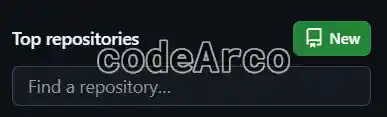
- Create a new repository on GitHub. To do this go to the home page and click the “New” button.

Create a new repository on GitHub - Configure the repository settings. Give your repository a descriptive name and select whether you want it to be public or private.
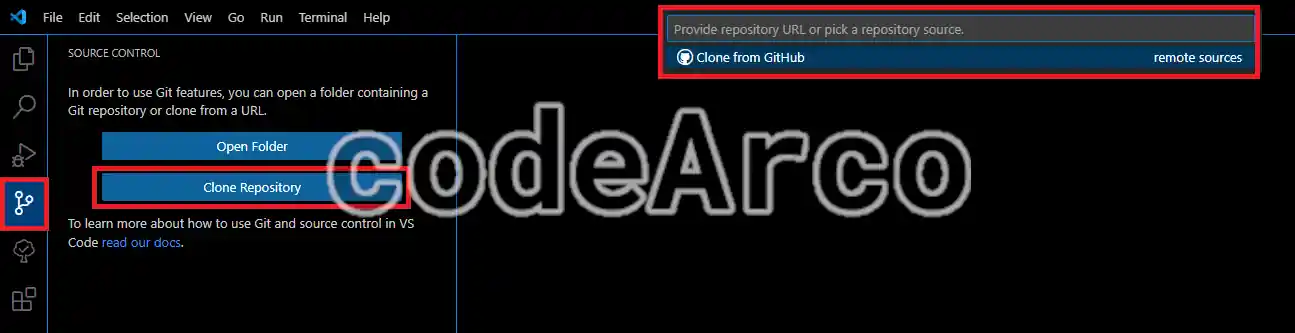
- Clone the repository from VSCode. To do this select the Git icon, click the “Clone repository” option and then select “Clone from GitHub”. Follow the on-screen instructions to log in. If everything went well, you’ll see a list of your repositories. Select the one you created in the previous step.

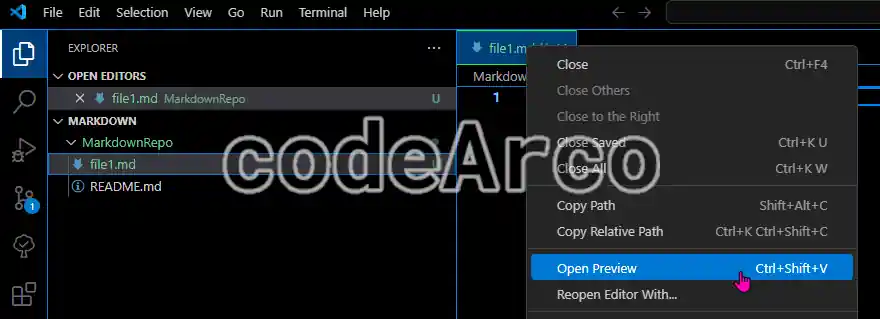
Clone a Git repository in VSCode - Create a test file and write it in Markdown format. You can open the Markdown preview by right-clicking and selecting “Open Preview”.

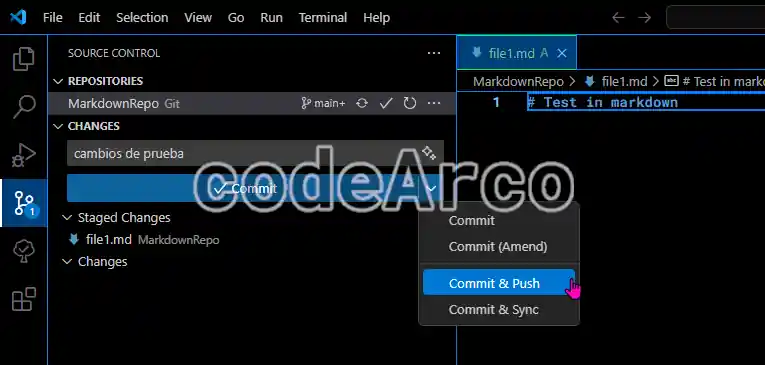
Open Markdown preview in VSCode - Upload your changes. To do this, in the “Source control, Changes” section select the “+” icon for the files you want to upload and then select “Commit & Push” from the drop-down menu. Only files that are in the “Staged” state will be uploaded.

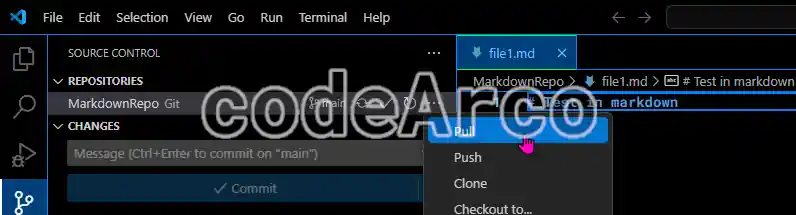
Upload changes to GitHub - Download your changes to other computers. If you want to have your project on multiple devices all you have to do is clone the repository to the devices and then “Pull”:

Download changes from GitHub - Don’t forget to sync changes. That is, when you finish working on one device remember to always “Push” to upload the changes and when you start working on another device remember to “Pull” to download the changes made on other devices.
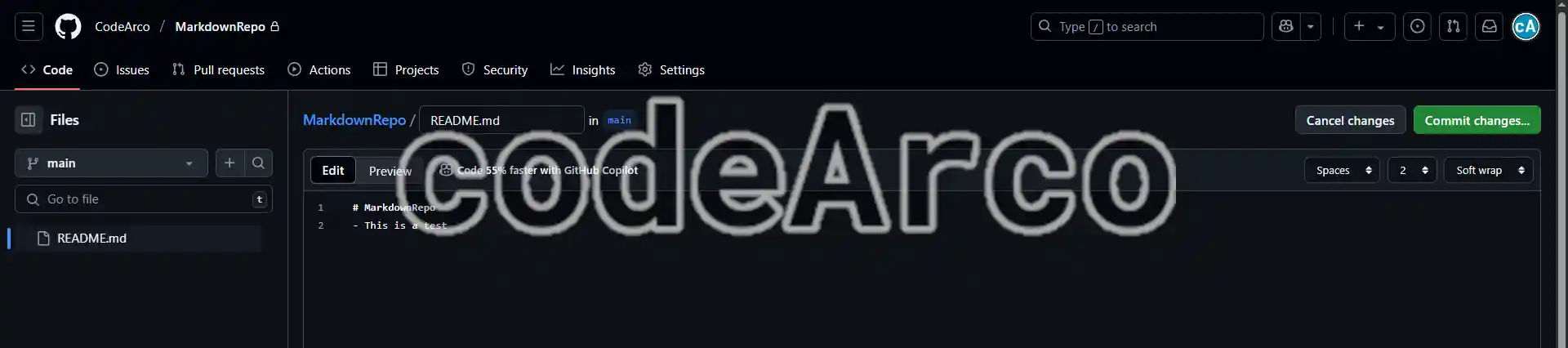
Keep in mind that you can also edit Markdown files directly from the web. For example, if you want to edit them from an Android phone, this is a great option. To do this, all you have to do is select the file in your repository, make the changes you want and select the “Commit Changes” option.
Finally it’s worth noting that there are other alternatives for syncing Markdown, such as Google Drive or One Drive, which allow you to automatically sync folders from your computer to the cloud.