Over the past few months I’ve been working quite a bit with VSCode (my main IDE is Visual Studio) and, above all, with large files where I needed to scroll quickly with the mouse to navigate through them and be more efficient. Initially, I tried changing the mouse sensitivity through Windows 10, but as you can see, it had no effect on the code editor:
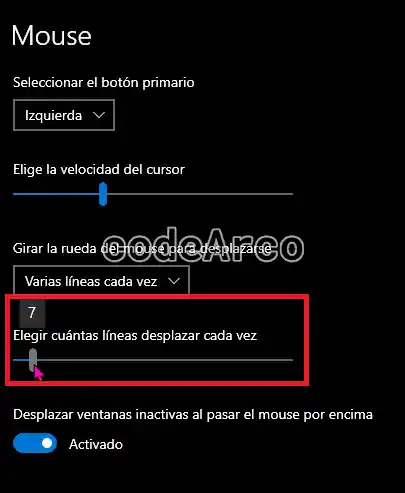
I also tried it in Windows 11 with the same results:

Another reason I needed to change the scroll speed in the editor is because I now use Markdown to write blog posts in WordPress and, just like with large work files, I need to move quickly through them.
For these reasons, today I’m bringing you a step-by-step guide on how to change the mouse speed in VSCode and how to configure smooth scrolling in Visual Studio Code.
Configure smooth scrolling in VSCode
To enable smooth scrolling in VSCode the first step is to open the editor settings, to do this, press Control + P and then type and select > Preferences: Open User Settings (JSON).
In the file that appears, just write the following code inside the main object:
"editor.smoothScrolling": true // Smooth scrollAs a final step press Control + S to save the changes and verify that the scrolling is now much smoother and no longer scrolls as before.
Change mouse sensitivity in VSCode
The steps to configure mouse speed in VSCode are very similar to the previous ones. First, we’ll open the JSON configuration in Visual Studio Code, exactly as in the previous step.
After the line we used before, we’ll add the following code:
"editor.mouseWheelScrollSensitivity": 7 // Scroll speedAnd finally we save the changes with Control + S and verify that the mouse speed has indeed changed.
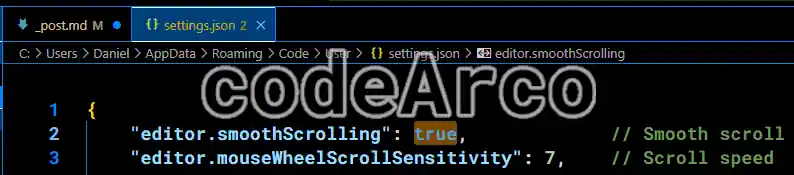
Here’s a full example to configure the mouse in VSCode with the code from both sections:
{
    // Start VSCode configuration

    "editor.smoothScrolling": true,             // Smooth scroll
    "editor.mouseWheelScrollSensitivity": 7,    // Scroll speed

    // Other settings...
}
It’s possible that the changes won’t be applied after saving, this doesn’t usually happen, but if this is the case, one way to restart Visual Studio Code without having to close and reopen it manually is to press Control + P and select >Developer: Reload Window.
How to sync mouse settings to the cloud
Finally, as an extra, if you don’t want to lose your editor settings or want to keep them consistent across different devices and computers, you should sync them to the cloud.
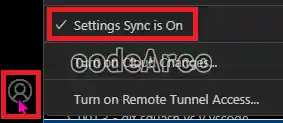
This is achieved by logging into Visual Studio Code with your Microsoft account using the user icon in the lower left corner. Afterward, you must enable the Settings Sync option so that it is set to On:
Repeat this process on all computers where you use the editor. You won’t need to manually change the JSON configuration file on all of them.