Once we have created and verified the corresponding XML file, it is necessary to send the sitemap to search engines such as Google and Bing so that the content of our website is indexed and appears in the search results.
After sending it will be necessary to verify what we have indexed in Google and Bing, that is, check that the sitemap has been sent correctly.
In this chapter we will focus on the most important search engines, Google and Bing.
Send sitemap to Google
The first thing we must do to be able to send the sitemap to Google is to have a Google Search Console account created and configure the Google Search Console property to link it to our website.
Then we will follow the following steps to send the sitemap to Google:
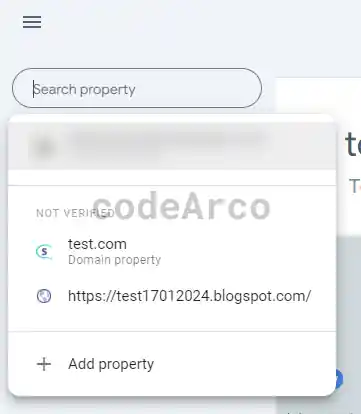
- Select the property for which we want to send the sitemap.

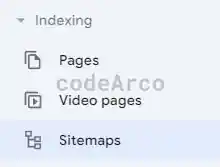
Select property send Google sitemap - Access the “Indexing”, “Sitemaps” section.

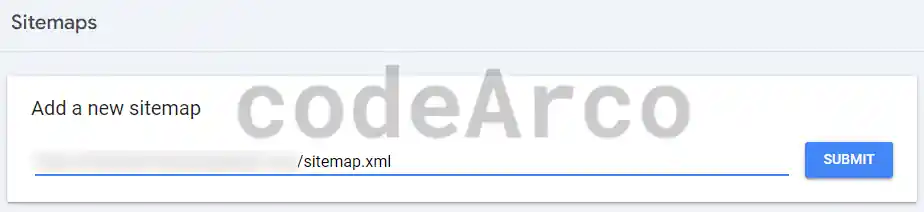
Indexing sitemaps Google Search Console - Enter the url of the sitemap and click on “Submit”.

Send sitemap Google Search Console
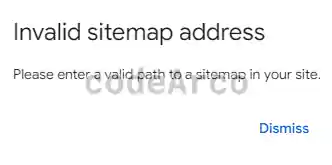
If when you send the sitemap you get the error message “Please enter a valid path to a sitemap in your site” check the following points of the url:
- The url starts with http:// or https://.
- The url belongs to the website of the selected property.
- The url is correct and, if we access it from the browser, the sitemap can be downloaded to our computer.
Verify sitemap sent to Google
Once we have carried out the steps to send the sitemap to Google and, after a reasonable amount of time, the steps to verify that the sitemap has been sent to Google correctly are:
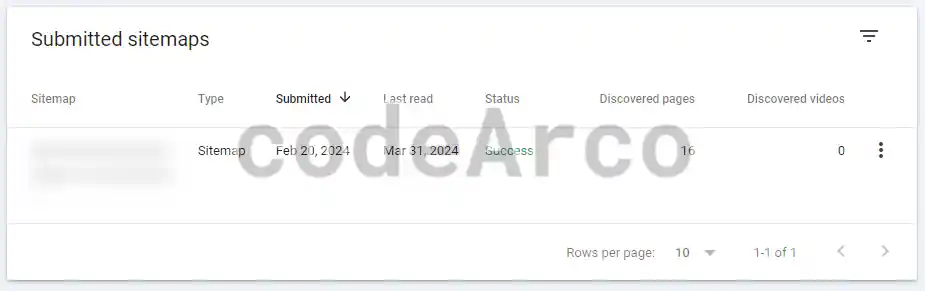
- In the “Indexing”, “Sitemaps”, “Submitted sitemaps” section we will verify that the status is “Success”.

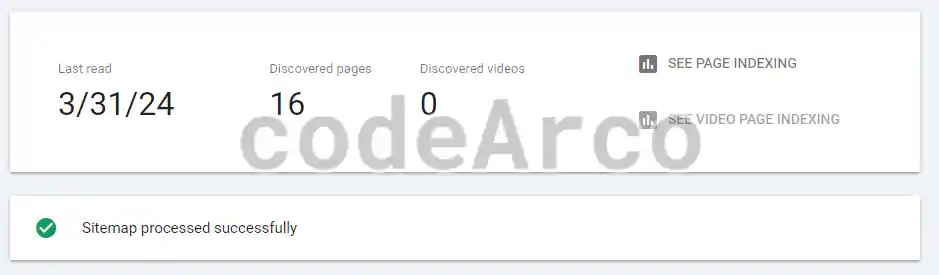
Verify sitemap sent to Google - Click on the corresponding row and check that the message “Sitemap processed successfully” appears.

Sitemap processed successfully Google - Access the “Indexing”, “Pages” section and check that the number of indexed pages is correct.

Number of pages indexed Google Search Console - Go to the bottom of “Indexing”, “Pages” and check the reasons for “Why pages aren’t indexed”. We have to check that there are no serious indexing errors, we will go into detail about this later.

Why pages are not indexed Google
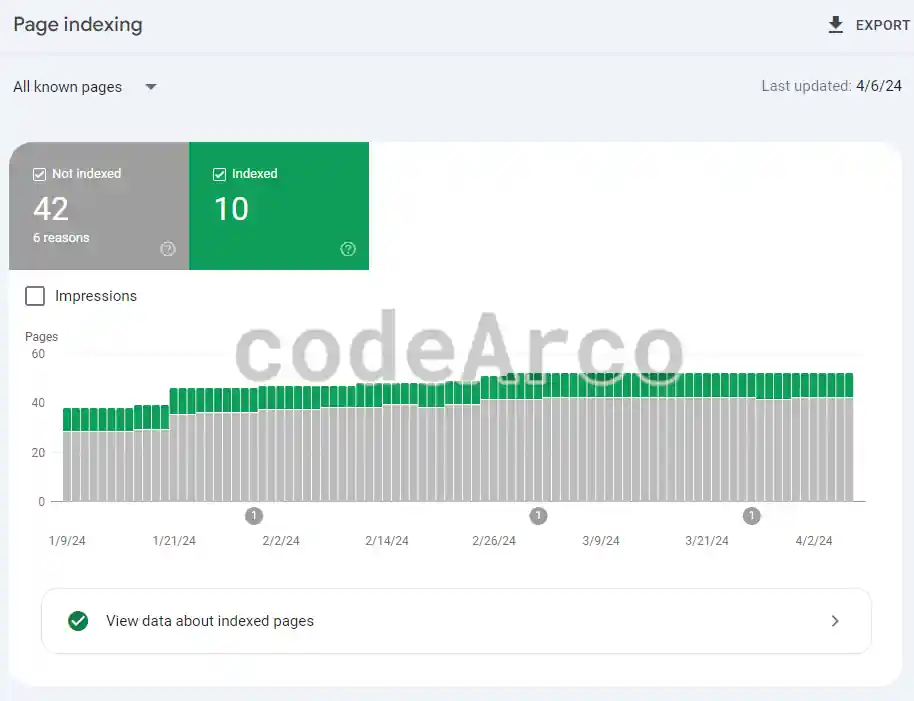
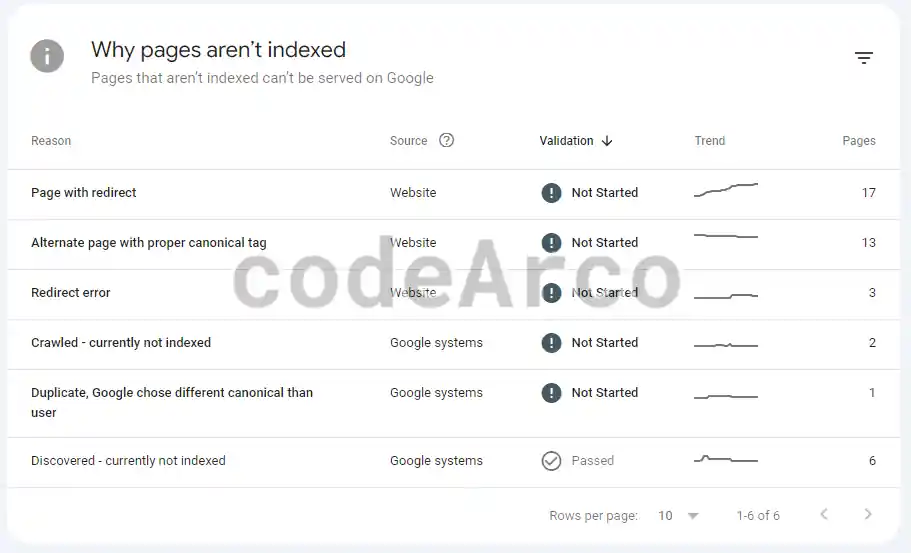
Indexing errors in Google Search Console
Some of the Google Search Console indexing errors produced when sending the sitemap to Google, as shown in the official documentation, are:
- Alternate page with proper canonical tag. This is not an error, it is simply warning us that we have canonical urls. Canonical urls allow you to specify to search engines that several urls point to the same content and to choose one of these addresses as the original or valid one.
- Page with redirect. Very similar to the previous one, the difference is that here the page with error is not canonical and points to another that may or may not be indexed in Google.
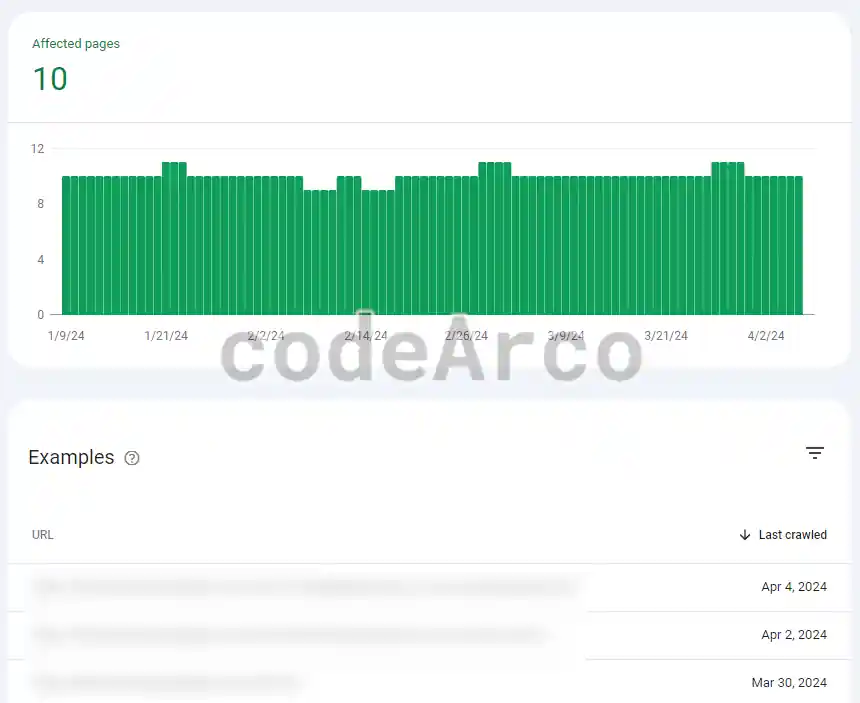
- Discovered: currently not indexed. Google has discovered the page but has not been able to crawl it for reasons such as, for example, the oversaturation of the website at the time of the analysis. The solution is to wait a while for them to be indexed.
- Crawled: currently not indexed. Similar to the previous one, Google has crawled the page but has not been able to index it. The solution, again, is to wait a reasonable amount of time.
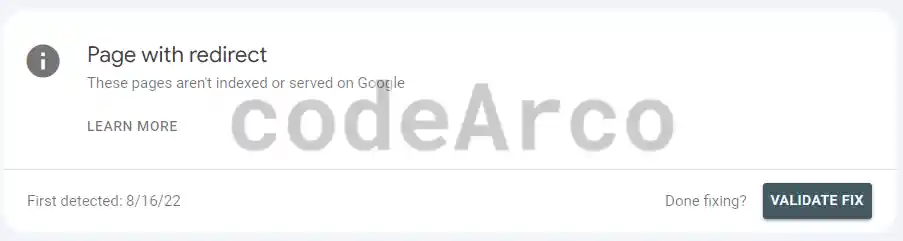
For the “Discovered: currently not indexed” and “Crawled: currently not indexed” errors, it is best to wait a reasonable amount of time for them to be resolved automatically, but not before clicking on each of the rows and requesting “Validate fix”:
Send sitemap to Bing
To send the sitemap to Bing, the recommended option, faster and with less work, is to send it to Google and wait a while for the Microsoft search engine to make a copy.
However, the Microsoft search engine also has a tool called Webmaster Tools that allows you to send a sitemap to Bing. We have two options to send the sitemap to Bing:
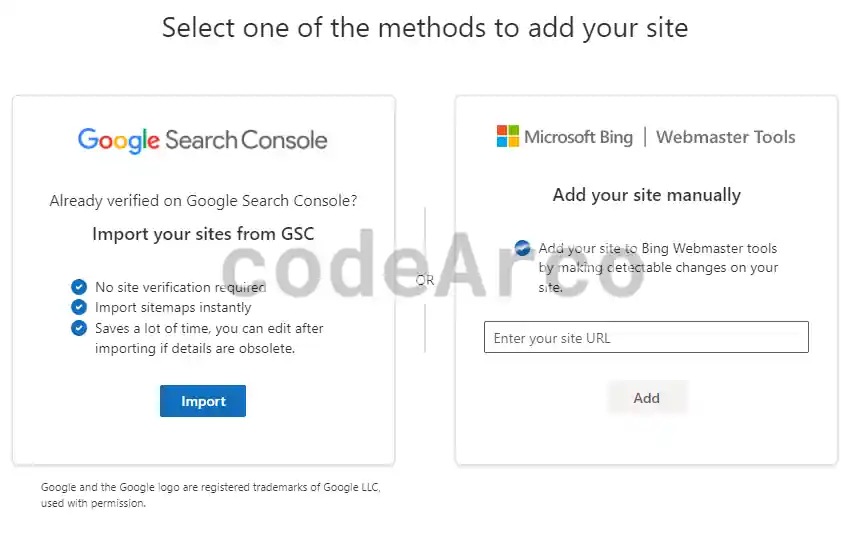
- Import the sitemap from Google Search Console, an option recommended for convenience, since we already have it fully configured, in a couple of clicks we will have our sitemap in Bing without having to add tags or files to our website.
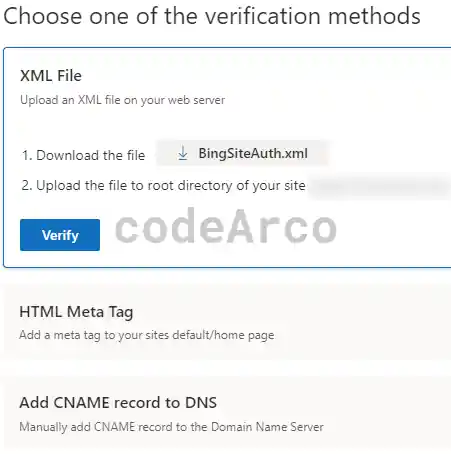
- Adding a site manually is not the recommended option since, as we saw for Google, it will be necessary, in some way, to verify that we are owners of the website.
We can carry out this verification by uploading an XML file, adding an HTML meta tag on our website or through DNS.

Verify sitemap on Bing
Verify sitemap sent to Bing
After sending the sitemap to Bing and, after waiting approximately 48 hours, the steps to verify that the sitemap has been sent to Bing correctly are:
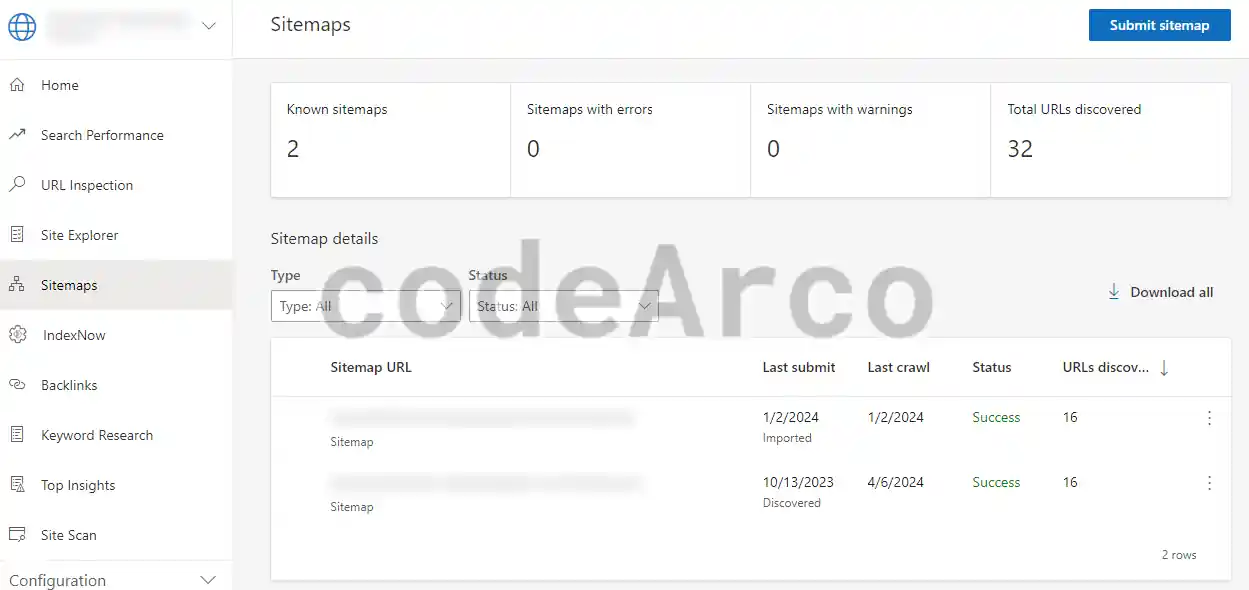
- Access the “Sitemaps” section.
- Verify that we have 1 known sitemap and that, in the sitemap details, a row appears with the status “Success”.

Verify sitemap sent to Bing - Click on said row and verify that the text “Successfully processed” appears.
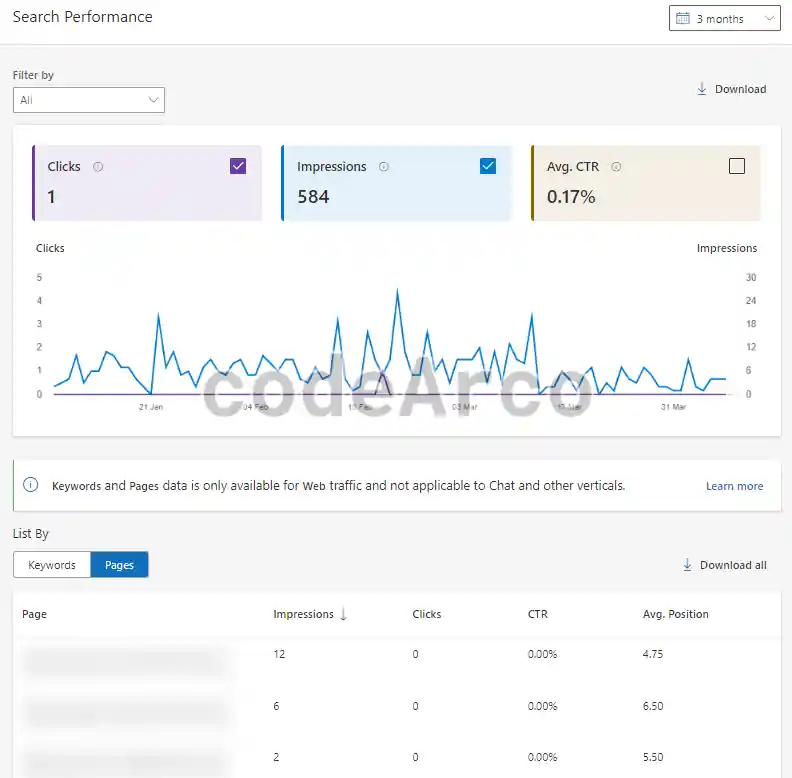
- In the search performance section we verify, after waiting a while after sending the sitemap, that data appears both in the graph and in the table with the search data.

Bing sitemap search performance
What do we have indexed in Google?
We have two ways to know what we have indexed in Google:
- Through Google Search Console, in the “Pages” section, “Indexing”, clicking on the “View data about indexed pages” button. In the upper section a history of the number of indexed pages will appear and in the lower section a table with the details and URLs of said pages will appear.

What we have indexed in Google Search Console - Through Google’s search engine using the key term “site:https://myWeb.com”. Once the query has been executed, the number of entries or pages indexed in Google will appear along with the time of said query in the format “About X results (Y seconds)”
An interesting fact about this method is that, if we use the selector “cache:https://stackoverflow.com”, we can see the date of the last visit of a web spider to a specific page and the content it had on that date.
Finally, to know if a specific page is indexed in Google, we can search “site:https://myWeb.com/myPage.html”. If results appear, it means that it is indexed and if, on the contrary, the message appears “Your search – site:https://myWeb.com/myPage.html – did not match any documents.” It means that it is not indexed and we will have to see, through Google Search Console, the reason for the indexing error.
What do we have indexed in Google search engine 
Google indexing cache


What do we have indexed on Bing?
In the same way we did with Google, we also have two ways to know what we have indexed in Bing:
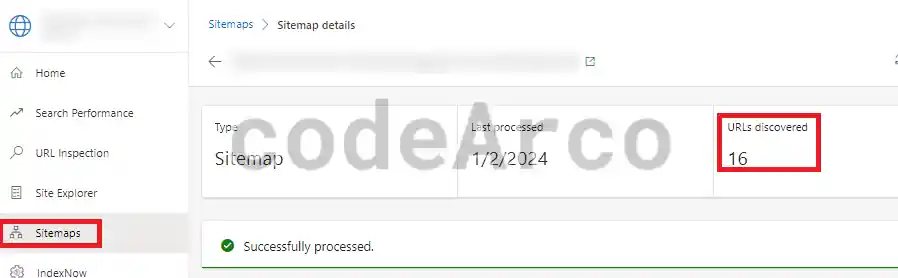
- Through Bing Webmaster Tools, within the “Sitemaps” section, if we click on one of them, we can see the details. If the message “Successfully processed” appears, the number of URLs indexed in Bing will be the one that appears in “URLs discovered ”.
As of today, we do not have a way to know exactly which URLs are discovered using Bing Webmaster Tools.

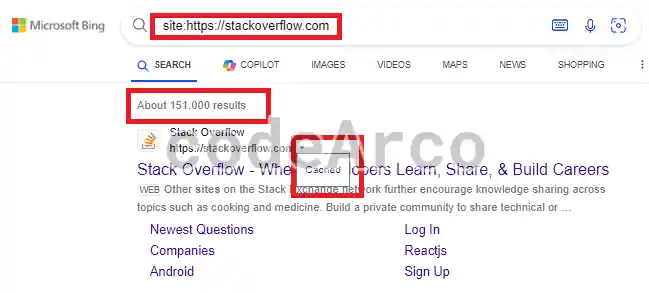
What we have indexed in Bing Webmaster Tools - Through Bing’s search engine using the key term “site:https://myWeb.com”. Once the query is launched, the number of pages that we have indexed in the search engine will appear.
Similar to Google, we can access the Bing cache using the arrow or drop-down menu that appears next to the title of each entry.
Finally, unlike Google, we cannot use the above query to know if a specific page is indexed on Bing or not.

What we have indexed in Bing and its cache