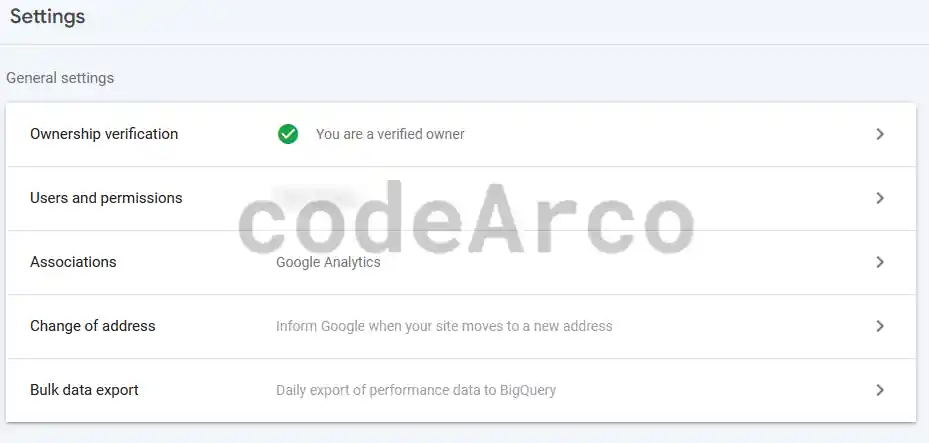
An essential step to be able to analyze the SEO of a website is to configure the Google Search Console property. With this we will indicate to Google that we are the owners of the website.
Property type in Google Search Console
To do this, we will log in to Search Console and, after that, we will click on the three lines at the top left and select “Add Property”.
The options to add the property type in Google Search Console are as follows:
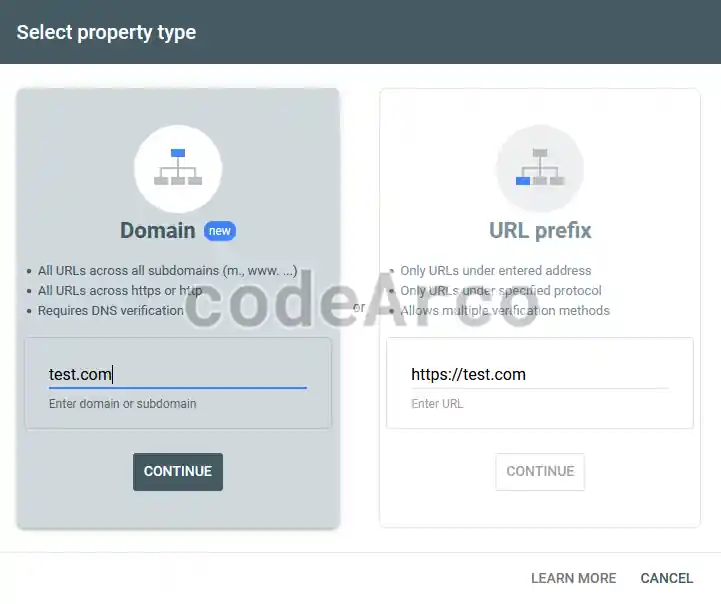
- Domain. With this option we will verify all the urls of the domain entered as well as its subdomains for both http and https. The format to enter is “example.com”. It is the recommended method for when we have subdomains or several protocols on our website.
- URL prefix. This option differs from the previous one in that with it we will only verify URLs that begin with the prefix entered, such as, for example, “http://www.example.com”.
This means that, if we have several subdomains and/or use http and https, we will have to verify as many times as we have subdomains and protocols.
For example, if we have a site with two subdomains, one for each language, and our website uses both http and https, we will have to verify the property for “http://es.example.com”, “https://es”. example.com”, “http://en.example.com” and “https://en.example.com”.
Method not recommended if we have subdomains or several protocols on our website.
If what we are adding is a Google product such as a Blogger blog, there is no need to do anything else, the URL or domain will be verified automatically.
Verification type for Google Search Console
On the contrary, if we are not adding a Google product, we must choose the verification type for Google Search Console:
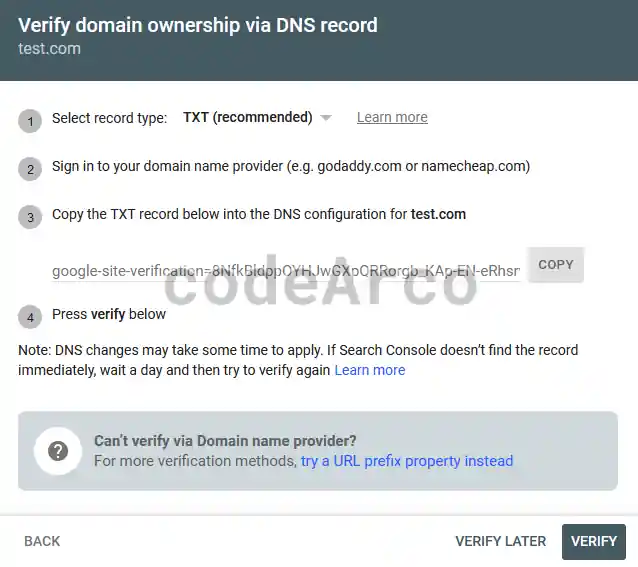
- Domain ownership via DNS record. It is the mandatory verification method for a domain property.
In short, it consists of logging in to your domain name provider (such as godaddy.com) and, in the DNS configuration, adding the TXT record that Google provides us on the verification screen.
This method is the one that may take the longest because DNS changes are not effective instantly, they take a while to apply and propagate.
For more information about adding a DNS record to a DNS provider you can consult Google’s documentation on the matter.

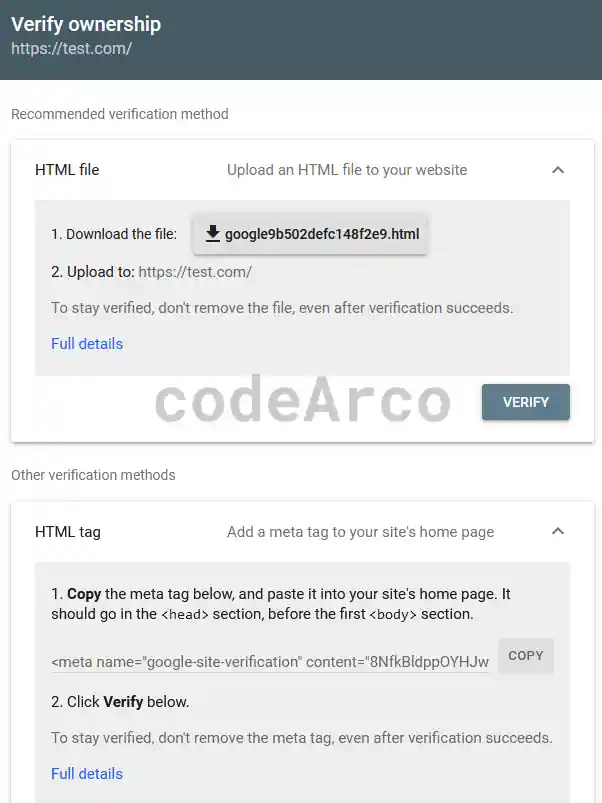
Verify DNS domain ownership in Google Search Console - HTML meta tag google-site-verification. Recommended method if we do not have Google Tag Manager due to its simplicity, it simply consists of copying a meta tag in the <head> of the main page of the website.
The only thing we have to do is copy the <meta> tag that Google provides us in the <head> section of the main page of the website we want to verify.
However, if the website is created with a content manager such as Joomla, Drupal or WordPress there are Google Search Console plugins that, after installing them, will ask us for the password that appears in that meta. The key is what is inside the “content” attribute.
An example of the above is the Yoast plugin for WordPress that asks us for the Google Search Console key.

Google Search Console verify property with HTML tag - Upload an HTML file. It consists of downloading the HTML file that Google provides us and adding it to the place they indicate, generally it is the root folder of the website.
- Google Analytics. It requires having the Analytics gtaj.js or analytics.js code installed on the main page of the website.
The user with whom we are going to verify the Search Console property must have editing permission for the Google Analytics property.
It is the easiest method if we already have the Google Analytics script installed on our website. - Google Tag Manager. In a similar way to Google Analytics, it will be necessary to have Google Tag Manager installed and configured on our website. Recommended method for its simplicity.
The user we are using to verify Search Console ownership must have permissions to view, manage, and edit Tag Manager containers.
You must keep in mind that the recommended method may vary from one account to another and is not the same for all web pages.
Check ownership verification
Finally, to verify that the property verification in Google Search Console has been carried out correctly, we will go to the three lines at the top left, in the drop-down menu we will select the site and in the menu we will go to the “Settings” option. If the property has been verified correctly, “Verified owner” will appear.