I recently installed OBS Studio on two different computers and on one of them the video screen capture worked on the first try and on the other I got the following error:
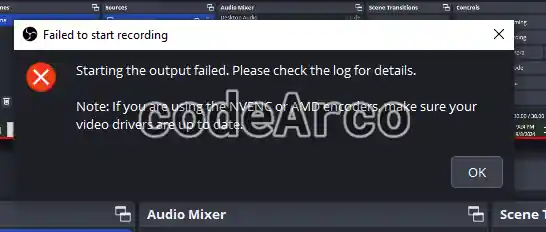
Starting the output failed. Please check the log for details.
Note: If you are using the NVENC or AMD encoders, make sure your video drivers are up to date.
Well, below we will see two ways to fix the error.
Quick and easy solution without updating drivers
I must admit that this was the route I took and it did not take me more than 1 minute. The steps to fix the error quickly and easily are:
- Go to “File”, “Settings”.

OBS Studio Video encoder settings - In the “Output” section change the video encoder to the value “Software (x264)”.

OBS Studio fix error starting the output failed
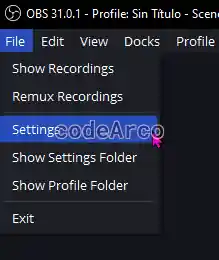

And that’s it, you can now capture your computer screen via video. However, as the message indicates, the disadvantage of this method (software encoder) is that the program will consume more resources to record video.
If you have a good machine or you are not doing any heavy tasks other than recording, this is the ideal solution due to its speed and simplicity.
Recommended solution, update video drivers
There is another way to fix the error and that is by updating your graphics or video card drivers as indicated by the error message:
If you are using the NVENC or AMD encoders, make sure your video drivers are up to date.
This method is recommended as it is always better to have your computer drivers updated and also the program will not consume as many resources when recording if you use the hardware encoder.
However, this method does not always work, the computer on which I tried to record with OBS Studio, even though I followed this process completely and correctly, only the first solution worked for me.
To fix the error you can update the video drivers in different ways:
- Open Windows Update and click on “Check for updates”, install those that are available.
Although this step is not necessary, we take advantage of it to update the computer.
Select “View optional updates” and search for and install those that have to do with the video, graphics card… etc.

How to update video drivers with Windows Update - Look for your graphics card in the Windows menu under “Device Manager”, under the “Display adapters” section, and select the “Update driver” option. Follow the installation wizard.

Device Manager in Windows - The way I personally like the most is to go to the official website of your graphics card, for example the Nvidia website or the AMD website, and manually download and install the latest drivers for your graphics card.

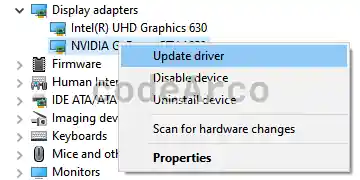
Whatever option you choose to update the drivers, as I mentioned, this method does not always work. In my case, the only solution to the error that allowed me to record with OBS Studio was to change the video encoder to software as we saw in the first section.