
Below we will show the steps to change the language of Excel Office in formulas, interface and grammar.
Additionally, we will see different ways to install new languages and the advantages that this brings us when following Excel tutorials and learning with them.
How to change the language in Office
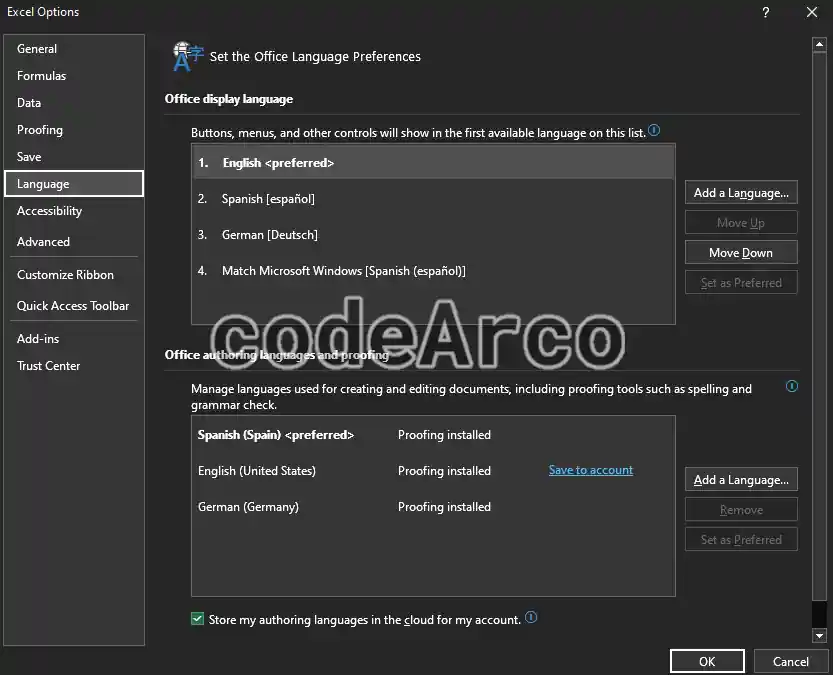
The steps to change the language of any Office program are the following:
- Top menu, File, Options.
- Within this we will go to the Language section.
- Move the desired option to the first position through the Move Up and Move Down buttons.
- Select OK and restart the program, that is, close it and reopen it.
How to install a new language in Excel
If the option you want does not appear in the available options, you must install the language through the Add language button in any of the sections.
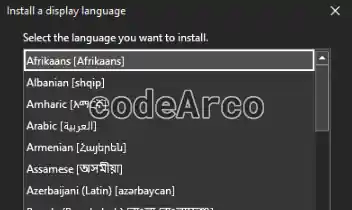
Once you click on the OK button, Office may begin to update and, when it finishes, you will have the new option installed.
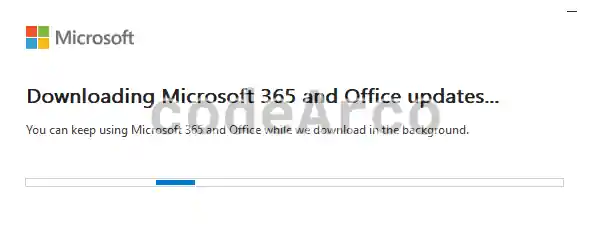
In other versions of Office, you may be redirected to a Microsoft page where you will have to download and install it manually.
Another case that may occur is that the option appears in the list but next to it there is the message Install available. Simply click on the link and follow the installation instructions:

In any case, when the process is finished, once you restart the application, you will have your new option installed and working.
Steps to change the language of the functions in Excel
If what we need is to change the language of the functions and the Excel interface, we will follow the previous steps but only in the first section, the one titled “Office display language”.
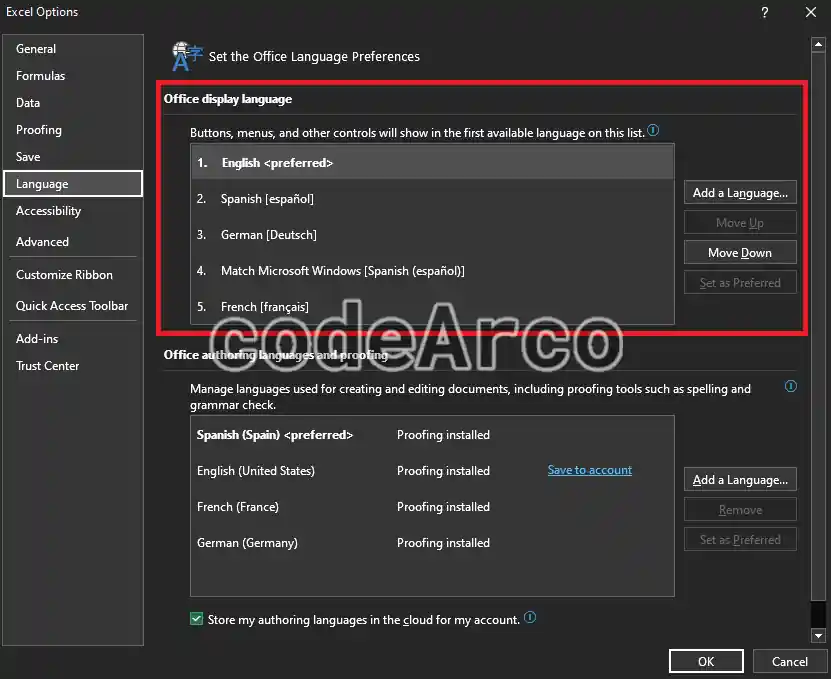
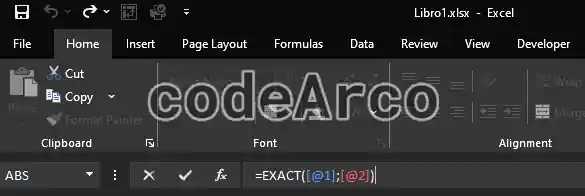
Once the option of your choice is in the first position, you just have to click on OK and restart the program. You can check that it has been changed correctly because now the tongue of the buttons, options and formulas is another:
How to change the grammar tongue in Office
If what we want is to change the language of the grammar and spell checker in Office this time you will have to follow the same steps, but in the lower box of the Language section:
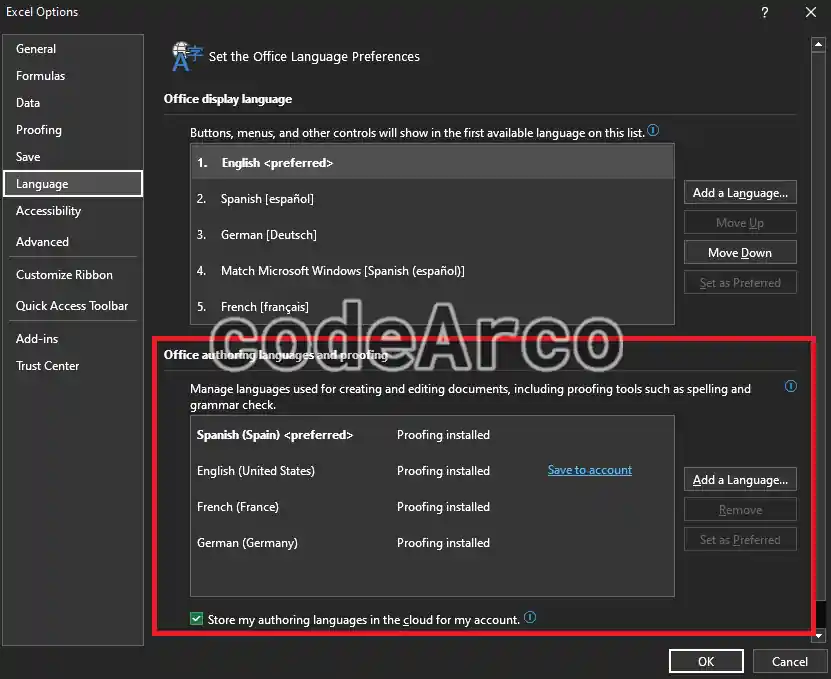
Again, for the changes to take effect remember that you must restart the Office application by closing it and reopening it.
Why change the tongue of Excel functions?
The main advantage of changing the tongue of Excel functions and its interface is that most of the Excel tutorials on the Internet are in English.
Using these simple steps you will be able to follow the tutorials found on the Internet without any problem and without having to translate Excel formulas into another language.
My recommendation is to configure Office so that the interface and Excel functions are in English and the grammar checker is in your native language.
Also, if at any time you want to have the interface in your native language, keep in mind that if you change the tongue, the functions existing in the document will be automatically translated to the selected option.