A few days ago I was updating my WordPress plugins versions and for the Contact Form 7 plugin I encountered the following message:
Attention reCAPTCHA users: Google wants all reCAPTCHA users to migrate to reCAPTCHA Enterprise which means Google will charge you for API calls that exceed the free tier. Contact Form 7 is compatible with Cloudflare Turnstile and we recommend that, unless you have a reason to use reCAPTCHA.
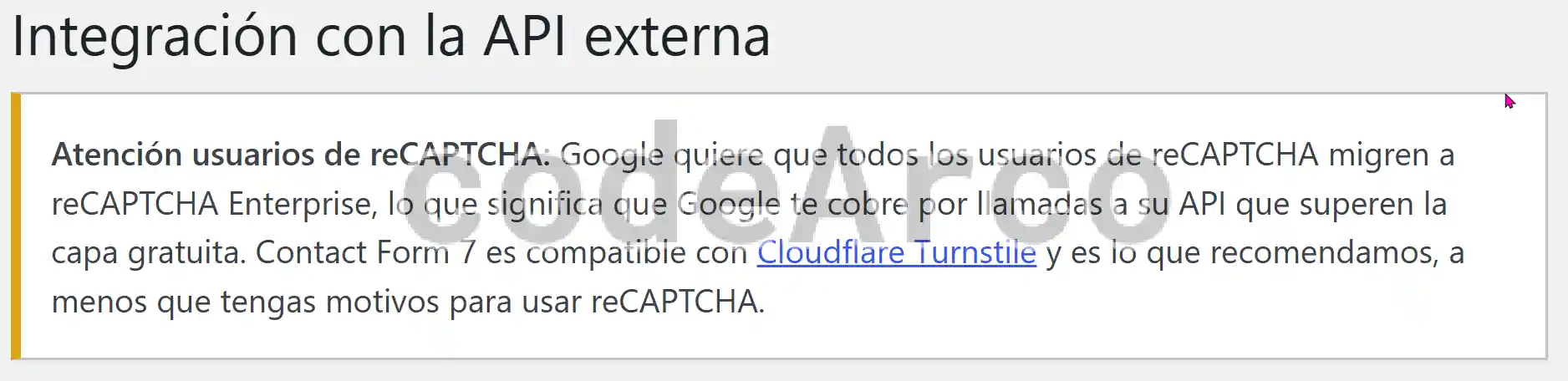
Well, as always, I started researching and below I’ll show you everything I learned about migrating the Contact Form 7 plugin from Google reCAPTCHA to Cloudflare Turnstile.
Why migrate Contact Form 7 to Cloudflare Turnstile from Google reCAPTCHA?
The first question that came to mind was is it really necessary to migrate from Google reCAPTCHA in WordPress?. Well, the answer depends on your website’s traffic.
According to the official Google reCAPTCHA documentation if you exceed 10,000 monthly validations you will be charged $8. If you want to know more info about pricing I recommend that you review the linked article in addition to the official documentation.
Therefore, if we want to answer the question of whether it is necessary to migrate to Cloudflare Turnstile in WordPress with Contact Form 7, we must evaluate the following points:
- Where are the validations or protected pages?. This is the most important point to keep in mind, the total traffic to your website is not the same as the traffic received by forms or sections with Google reCAPTCHA validations.
Let’s take this blog as an example. Here, I only have the contact form protected and, therefore, the limit of 10,000 validations that Google takes into account would only apply to the contact page traffic, not to total web traffic. - What is the average traffic to forms with Google reCAPTCHA?. Taking the previous point into account we must calculate the average and maximum traffic for all pages that have Google reCAPTCHA validations.
If, for example, your average traffic is 1,000 and the maximum is 3,000, it will be very difficult for you to exceed the limit of 10,000 in a short period of time and, therefore, a migration would not be necessary.
If, for example, your average traffic is 7,000 but there are months where you reach 11,000, in this case, a migration would be necessary because otherwise some months you would have to pay the $8 set by Google. - Do you foresee significant growth for your website such that you will exceed 10,000 visits to pages protected with Google reCAPTCHA?. At this point we must be honest with ourselves and have the data at hand.
Let’s assume our average traffic is 5,000 visits to forms and our growth rate is about 50 users per month. Well, it would take years for us to reach 10,000 and a migration would not be necessary.
Let’s assume, on the other hand, that we have an average traffic of 4,000 visits per month but our growth rate is 500 users per month. Well, with this data in hand, it’s safe to assume that in approximately one year we’ll surpass 10,000 visits and a migration would be necessary. - Do you want to stop worrying about the future and/or learn something new?. For me this is the only point that applies to my blog. First, I want to learn how to migrate to Cloudflare Turnstile in WordPress from reCAPTCHA with Contact Form 7 and, second, I want to stop worrying about the website’s future growth and avoid making predictions based on visitor data.
How to Migrate from Google reCAPTCHA to Cloudflare Turnstile in WordPress
If you’ve reached this point it’s because you’ve decided to make the switch. Don’t worry because, as you’ll see, it’s very easy to do it using the guide to migrate to Cloudflare Turnstile from reCAPTCHA in WordPress with Contact Form 7:
- Verify that you have Contact Form 7 version 6.1 or higher through the WordPress “Plugins” menu:

Contact Form 7 version compatible with Cloudflare Turnstile - Generate a “site key” and a “secret key” in Cloudflare.
If you don’t have Cloudflare configured you’ll have to create a site from scratch, follow the instructions linked above.
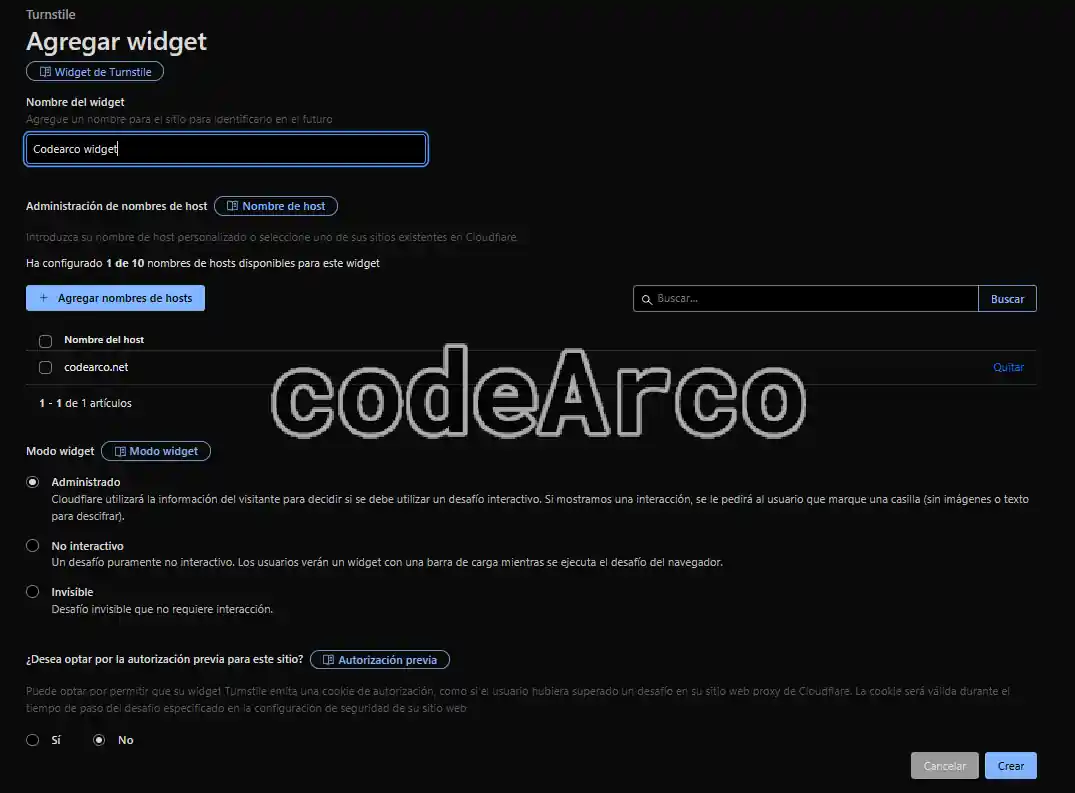
If you have already configured Cloudflare go to the dashboard and click the “Add Widget” button in the “Turnstile” section. Then add an existing hostname and select the “Managed” option:

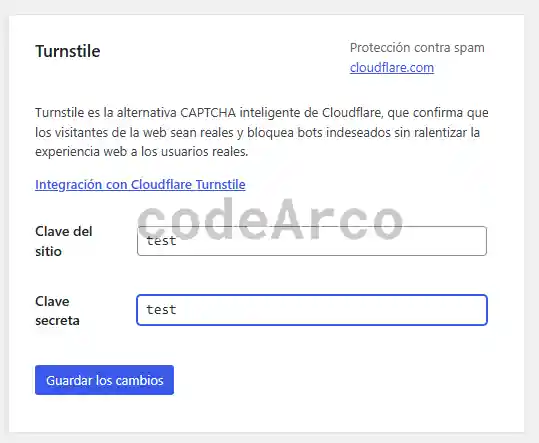
Cloudflare Turnstile widget configuration example for WordPress - Enter the keys in WordPress. To do this go to “Contact”, “Integration” and, in the “Turnstile” section, click “Configure Integration”. In the new window enter the keys you just copied and click “Save Changes”:

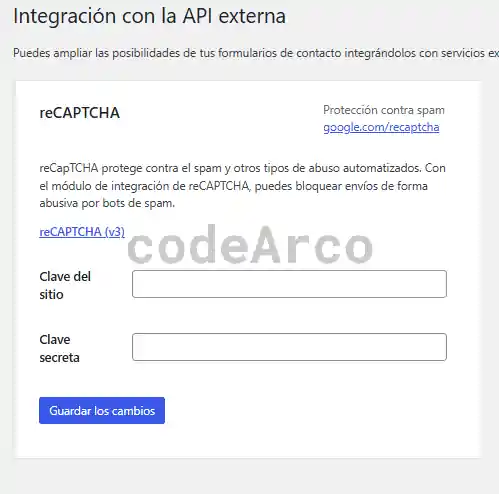
Configure Cloudflare Turnstile in WordPress - Remove the Google reCAPTCHA settings from Contact Form 7. Go back to “Contact”, “Integration” in WordPress and search for “reCAPTCHA”. Within the settings click “Delete keys”:

Delete Google reCAPTCHA settings in WordPress - Purge the caches you have configured in WordPress and outside of it so that the changes are applied correctly on all devices.
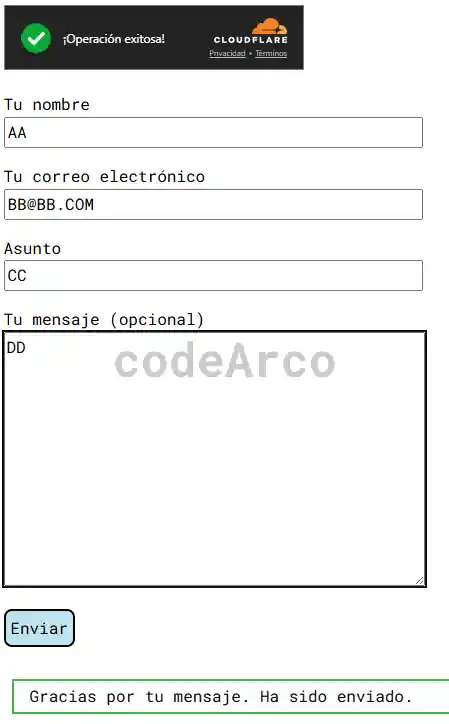
- Verify that your forms are working correctly and that they have the new Cloudflare Turnstile widget:

Verify Google reCAPTCHA migration to Cloudflare Turnstile in WordPress

How to check that Turnstile is working properly and that the migration is successful?
Okay, we’ve got everything set up correctly and we can see an animated banner on the protected forms but… How can we check that the Cloudflare Turnstile widget is working correctly and is actually protecting us from bots? How can we check that Google reCAPTCHA has really been removed and nothing from the integration has been left hidden? Well, let’s look at some steps to check all the previous points:
- Check the protected forms and pages. This step is exactly the same as the last point in the previous section and consists of verifying that the Cloudflare widget appears on the secured forms and pages but, additionally, I also recommend verifying that the forms are submitted correctly.
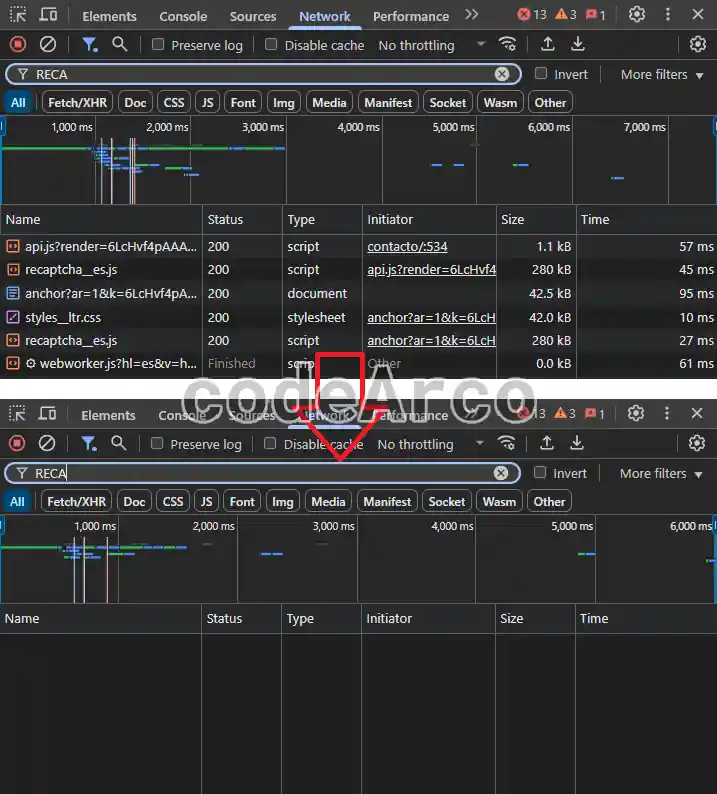
Following my example, the verification I need to do is that, when I submit the contact form, it arrives to my email just as it did before. In your case the functionality may not be receiving an email, but something else. You should check that it behaves exactly the same as before. - Verify the removal of Google reCAPTCHA using the browser inspector and, in the “Network” section, verify that no resource with the text “ReCAPTCHA” is loaded. Below is a screenshot of the network before and after the migration:

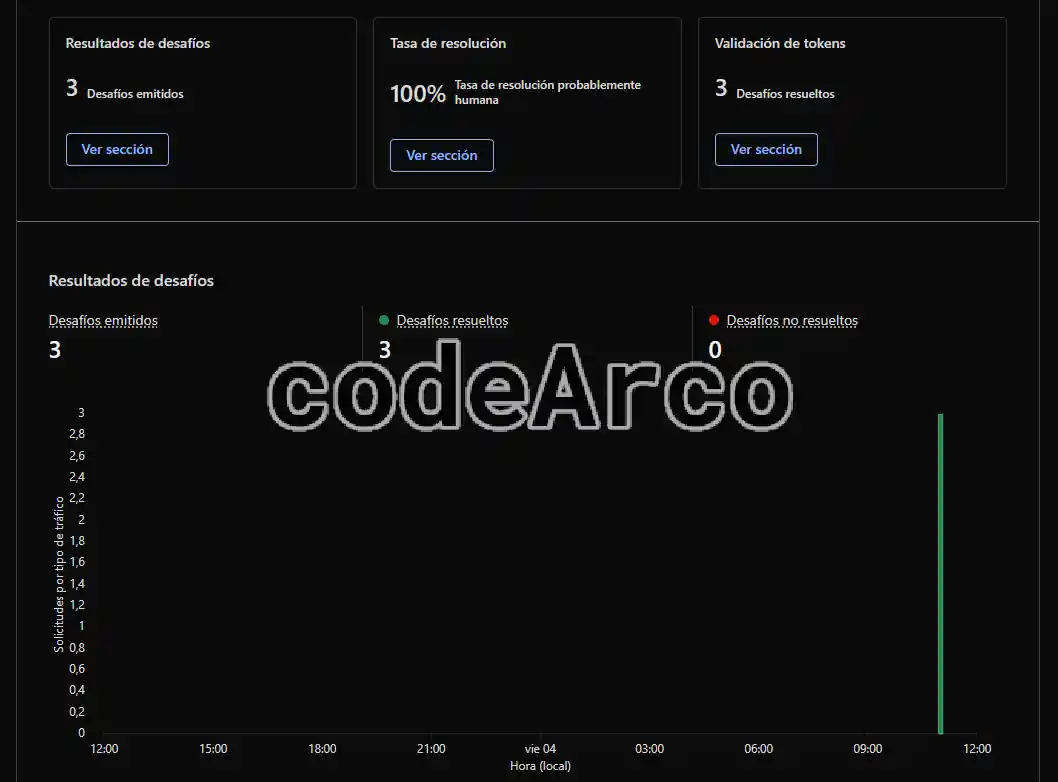
Verify that Google reCAPTCHA has been removed - Review the Cloudflare Turnstile validation analysis. A very simple way to verify that Turnstile is working correctly is to go to the Cloudflare dashboard and, in the “Turnstile” section, click on the “View analysis” link in the widget we created in the previous section.
Remember that data will only appear here if you or someone else has accessed the protected forms after the migration.
If the screen has validations or challenges it means it’s working properly:

Validation analysis in Cloudflare Turnstile - Force rejection of validations. This is the most complex section but I was curious to try it and force a negative challenge.
The first step is to obtain Cloudflare dummy keys that always reject validation. We’ll use the following:Sitekey: 2x0000000000000000000ABandSecret key: 2x0000000000000000000000000000AA.
Then you’ll need to enter them into the Contact Form 7 integration with Cloudflare in the same way as before.
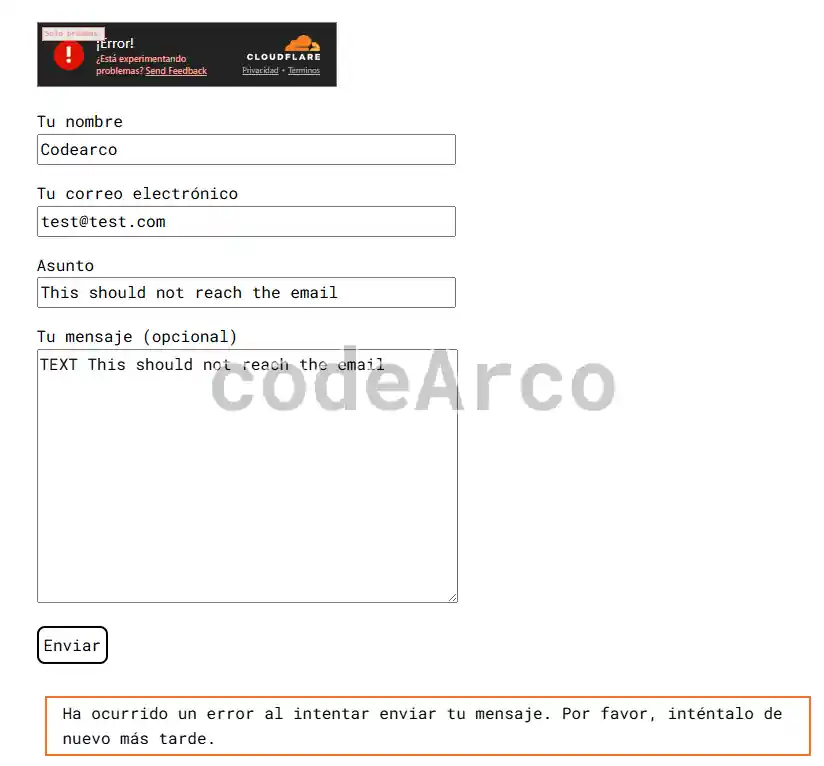
After that go to your website and verify that this time the forms aren’t working and aren’t submitting data. In my case, as I mentioned before, I need to verify that an error message appears and that no emails arrive in my inbox:

Force rejection of Turnstile validations with dummy keys - Reset the original keys. If you changed the keys in the previous step to force the rejection of challenges and test the migration to Cloudflare Turnstile from Google reCAPTCHA, don’t forget to change them to the ones you noted during setup.
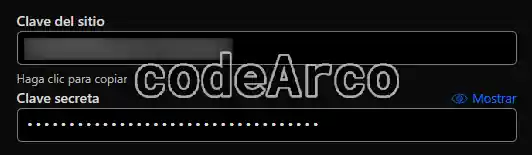
If you didn’t note the keys you can view them through the “Turnstile” section of Cloudflare. Simply click the three dots to the right of the widget you created and select “Edit”. You’ll see them at the bottom:

Cloudflare Turnstile keys on dashboard