Perhaps you have already installed Polylang on your WordPress website to have a multilingual website correctly configured for international SEO, but you have reached the point where you need customization or advanced configuration of WordPress and Polylang for things such as:
- Insert PHP code into WordPress to be able to use the language functions of Polylang and other plugins.
- Know what the PHP function is to obtain the current language with Polylang of the website and thus make certain customizations depending on the language.
- Insert dynamic Gutenberg blocks by language and HTML sections so that certain parts of your website look different depending on the selected language.
- How to translate the WordPress menu or sidebar with Polylang so that, depending on the user’s language, the navigation menu appears in one language or another.
Well, all these things and some more are what we will cover in this complete tutorial on translations and languages with WordPress and Polylang.
PHP code into WordPress with WPCode plugin
The first step to translate the WordPress navigation menu with Polylang is to install the WPCode plugin which will allow us to insert PHP code and Gutenberg blocks conditionally into our website, depending on the language:
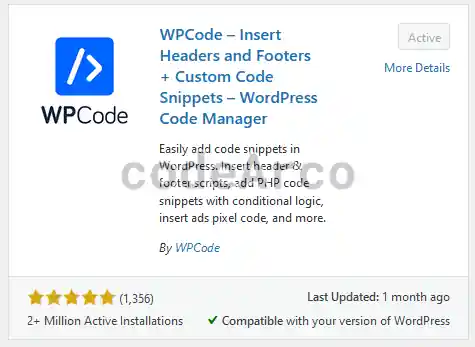
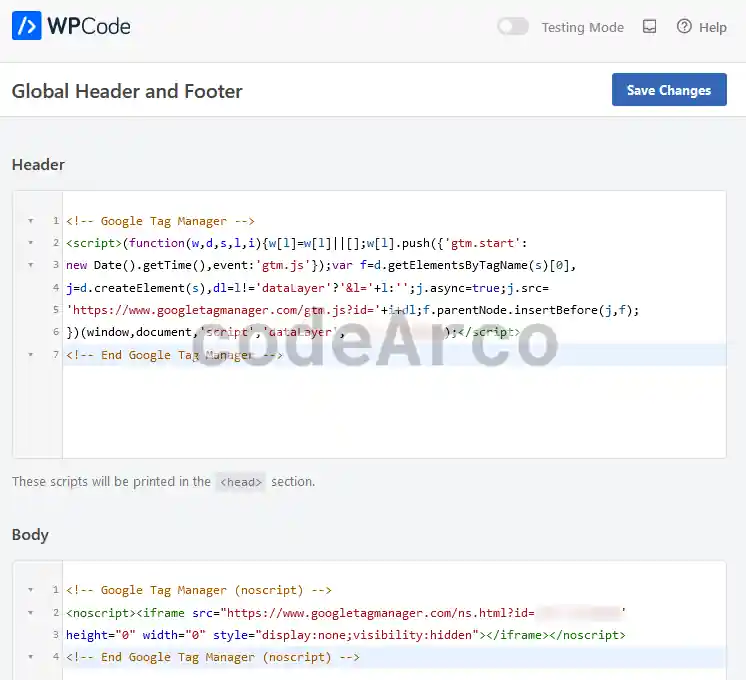
This plugin not only allows you to insert PHP code into WordPress, it also allows you to insert the Google Tag Manager tag in the head and body:
Next we will do a test to verify that we can insert PHP code into WordPress:
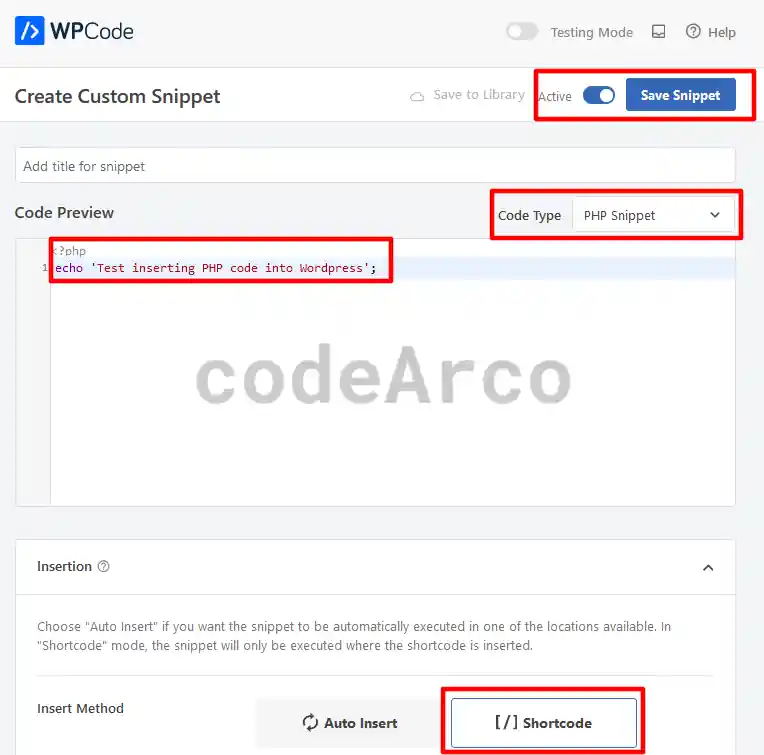
- Let’s go to “Code Snippets”, “Add Snippet”, “Add your custom code (New Snippet)”.
- Select “PHP Snippet”, activate it in the upper selector and select the “Shortcode” option. As code we will enter the following:

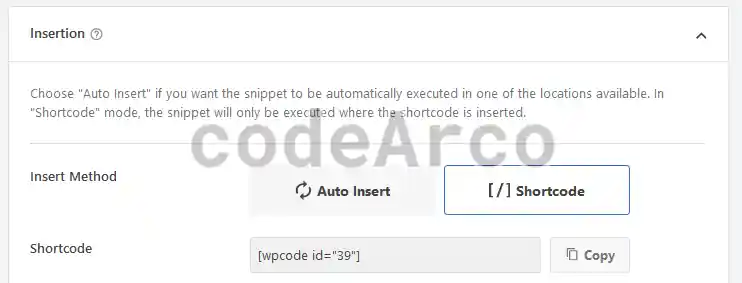
PHP code fragment for WordPress echo 'Test inserting PHP code into WordPress'; - Save the fragment and write down the shortcode that has been generated:

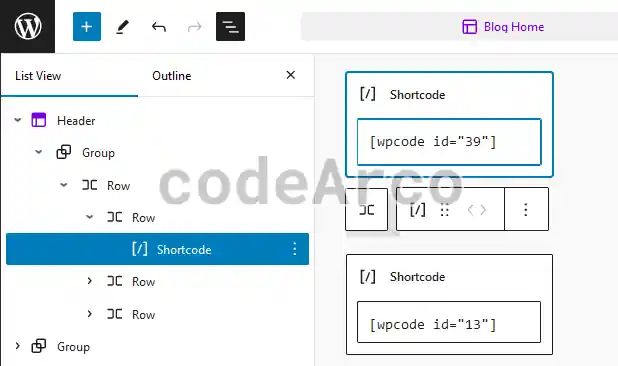
PHP Shortcode for WordPress - Insert a Gutenberg block of type shortcode in the WordPress designer with the value that we copied in the previous step:

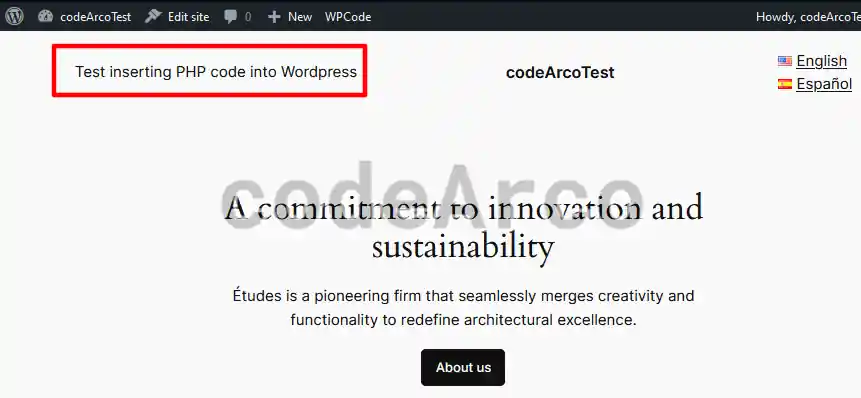
Insert shortcode PHP WordPress code - Finally we verify that the PHP code has been executed in WordPress correctly:

Test PHP code in WordPress
PHP function for current language with Polylang
The next step is to know what Polylang function gives us the current language and use it within the PHP code through a shortcode.
To do this we will go to the official Polylang documentation on functions where we can see all the Polylang functions that we can use on our WordPress website.
Specifically we are interested in the PHP function pll_current_language which returns the current language in full name or slug format (default option if we do not pass any parameters).
We will, therefore, go to the code snippet editor of the WPCode plugin and modify the snippet we created before as a test and change its code to the following:
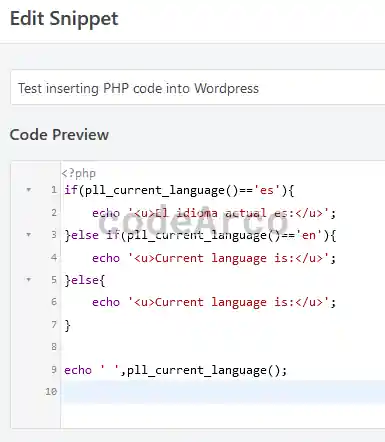
if(pll_current_language()=='es'){
    echo '<u>El idioma actual es:</u>';
}else if(pll_current_language()=='en'){
    echo '<u>Current language is:</u>';
}else{
    echo '<u>Current language is:</u>';
}
echo ' ',pll_current_language();
And then we will visit our website to see the test of PHP functions in WordPress and Polylang:
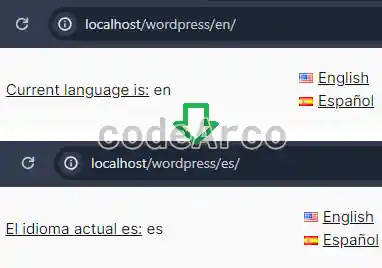
Once we know this, as you can see, it is easy to extrapolate it to more complex cases such as translating the WordPress navigation menu or creating HTML and dynamic Gutenberg blocks depending on the language.
Dynamic Gutenberg blocks by language with WordPress and Polylang
As you have seen in the previous section, once we know how to insert PHP code into WordPress and obtain the current language, it is a matter of imagination and knowing your needs so that you can completely customize your multilingual site according to the language.
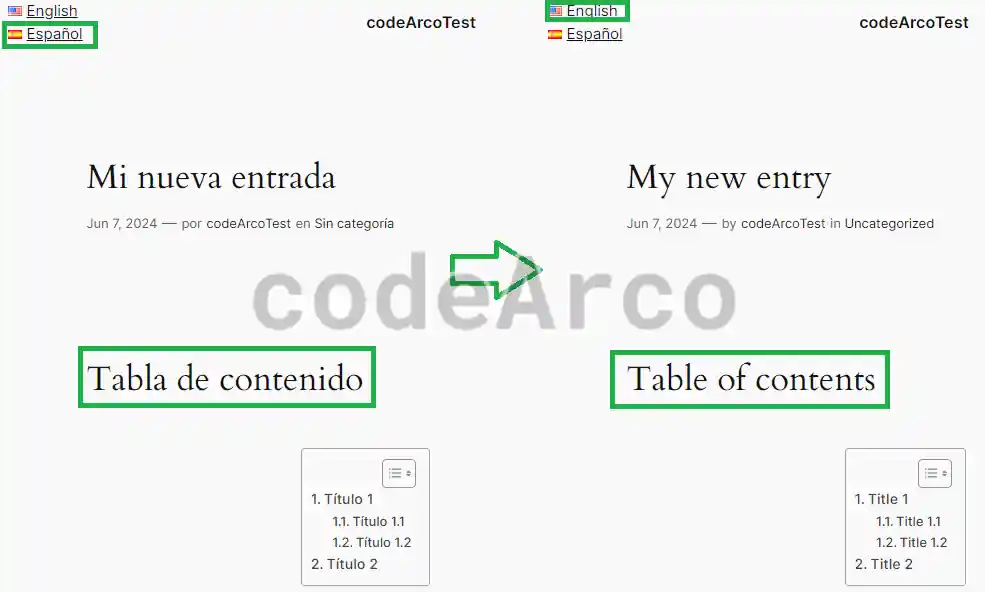
In this section we will see the steps to create dynamic Gutenberg blocks by language and HTML sections with WordPress and Polylang:
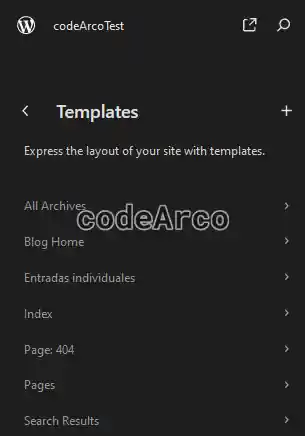
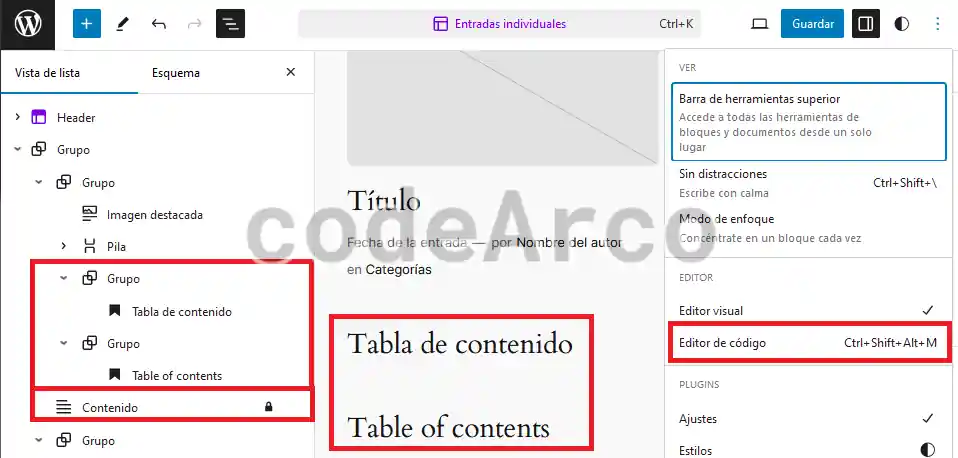
- Open the theme editor and locate the section that we want to customize. In our case, since we want to enter the title of the table of contents, we will go to “Templates”, “Individual entries”.

Open WordPress theme editor - Click “Edit” within “Individual Entries” and activate the list view to locate the part of the content. Before this Gutenberg block where we will insert the necessary code.
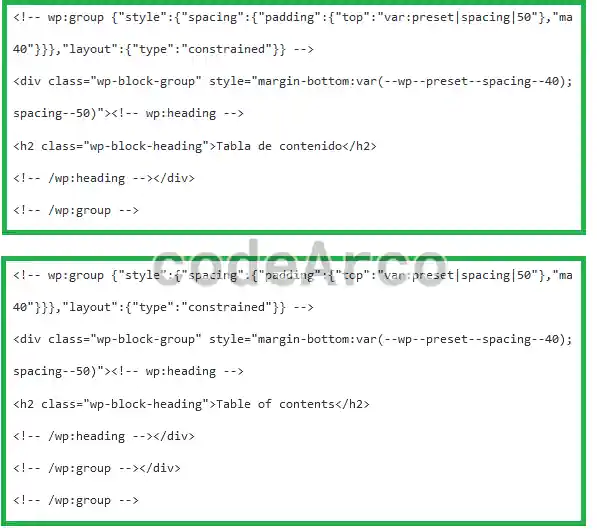
- Create the Gutenberg blocks by language we need, in our case they will be two groups with an h2 header each. Next we open the code editor.

Dynamic Gutenberg blocks by language and Polylang - Write down the HTML code of both blocks and do not save the changes since we will insert these blocks through a shortcode and PHP.

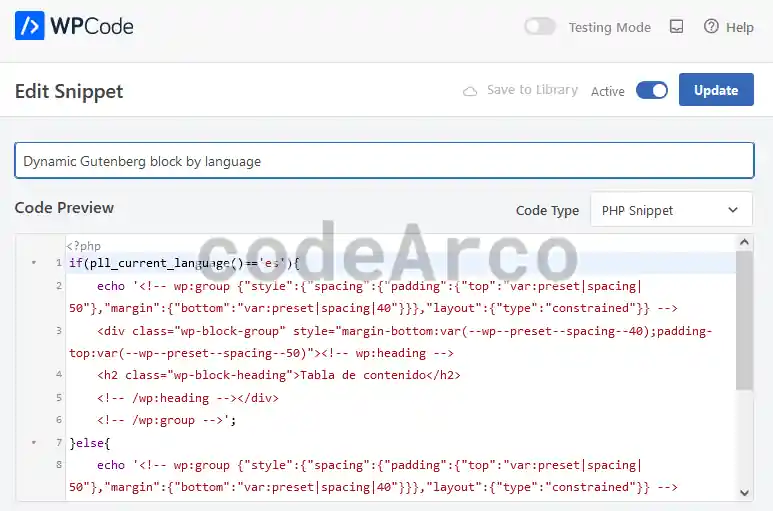
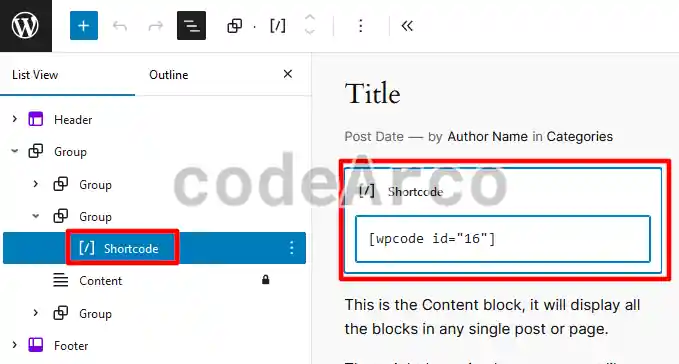
HTML code Gutenberg blocks by language - Create a dynamic PHP code fragment by language or conditional with the WPCode plugin, following the logic of the previous example where we used language codes. Remember to write down the generated shortcode.
The difference with the previous example is that instead of putting “the current language is Spanish” we will put, for each language, its corresponding Gutenberg block or HTML code:

Dynamic Gutenberg block by language in WordPress
if(pll_current_language()=='es'){
    echo '<!-- wp:group {"style":{"spacing":{"padding":{"top":"var:preset|spacing|50"},"margin":{"bottom":"var:preset|spacing|40"}}},"layout":{"type":"constrained"}} -->
    <div class="wp-block-group" style="margin-bottom:var(--wp--preset--spacing--40);padding-top:var(--wp--preset--spacing--50)"><!-- wp:heading -->
    <h2 class="wp-block-heading">Tabla de contenido</h2>
    <!-- /wp:heading --></div>
    <!-- /wp:group -->';
}else{
    echo '<!-- wp:group {"style":{"spacing":{"padding":{"top":"var:preset|spacing|50"},"margin":{"bottom":"var:preset|spacing|40"}}},"layout":{"type":"constrained"}} -->
    <div class="wp-block-group" style="margin-bottom:var(--wp--preset--spacing--40);padding-top:var(--wp--preset--spacing--50)"><!-- wp:heading -->
    <h2 class="wp-block-heading">Table of contents</h2>
    <!-- /wp:heading --></div>
    <!-- /wp:group -->';
}
How to translate menu or dynamic sidebar with Polylang and WordPress
Perhaps this is the most complicated part since it combines everything previously learned and, in addition, it is a little complicated since the navigation menus in WordPress 6 are made through Navigation or Gutenberg navigation blocks.
However, don’t be scared because we will see all the steps to translate the WordPress navigation menu with Polylang:
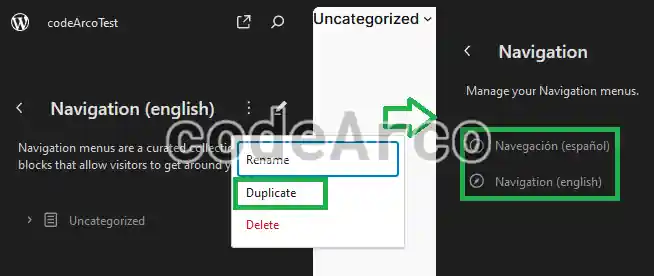
- Open the theme editor and locate the “Navigation” section. Within this we will find a single menu, we duplicate it and give them a descriptive name, we will use one for each language:

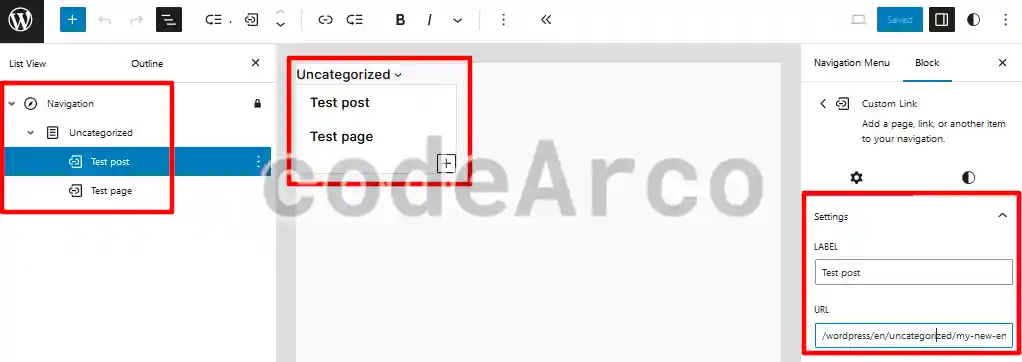
Navigation menus for multiple WordPress languages - Customize the navigation menus of each language to our liking, adding entries, pages and/or categories. Remember that each menu must have relative paths that direct to the corresponding language.

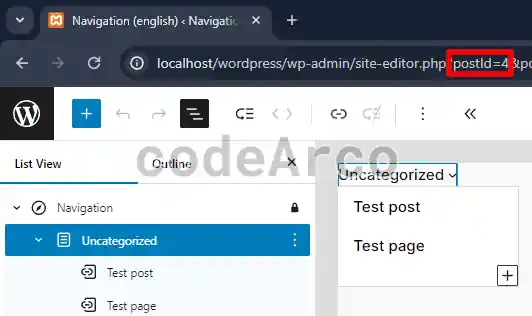
Customize navigation menus for each language in WordPress - Save the postId of each menu. This number is found in the URL of the WordPress theme editor when you are editing the specific navigation menu.
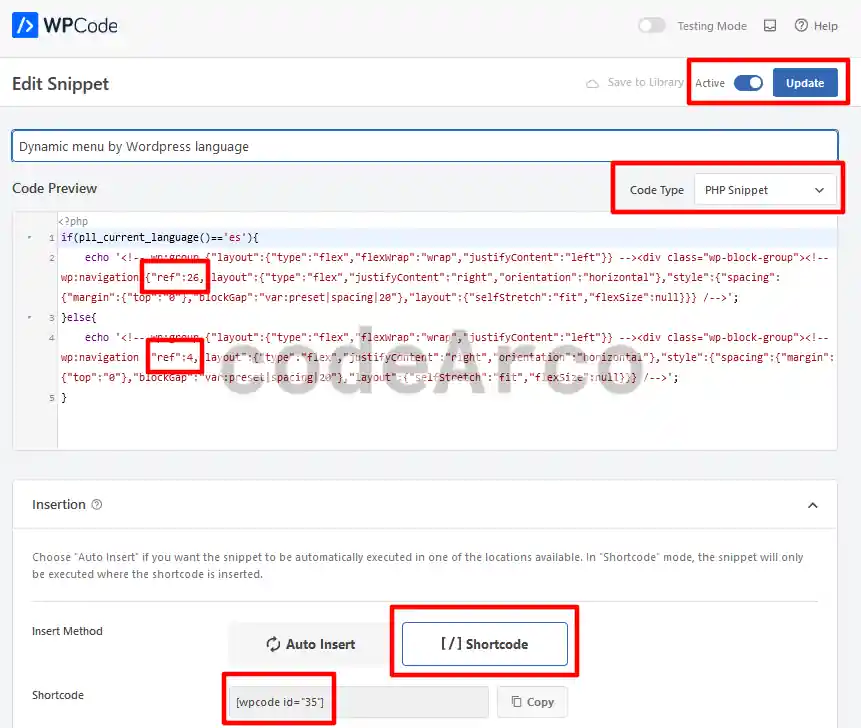
In our case the id for Spanish is 26 and the id for English is 4.

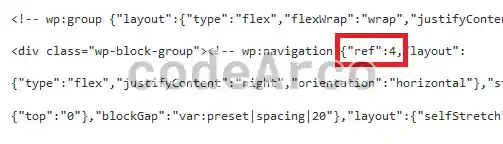
Get WordPress navigation menu postid - Find and copy the HTML code of the current navigation menu, the one shown inserted on the web, through the code view of the WordPress designer. In our case it is located within the header and, as you can see, it points to the menu in English:

Navigation menu HTML code - Create a language conditional PHP function through the WPCode plugin to introduce the menu dynamically by language. We give it a descriptive name, select “PHP Fragment”, select the Shortcode type, paste the code that I attach below and, once saved, copy the generated shortcode to enter it later:

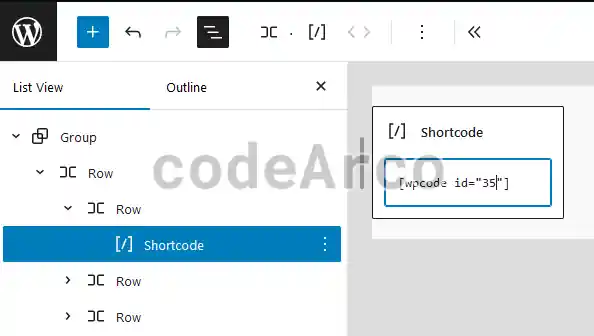
PHP function for dynamic menu by WordPress language - Finally we insert the shortcode through the WordPress theme editor to include the conditional menu by language.

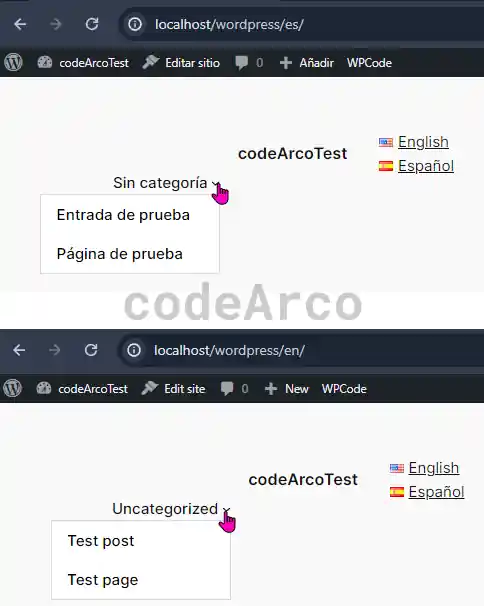
Shortcode conditional menu by language WordPress and Polylang - And we check that our menu by language with Polylang works correctly, it’s just a matter of giving it a little style and making it pretty:

Navigation menu by language with WordPress and Polylang