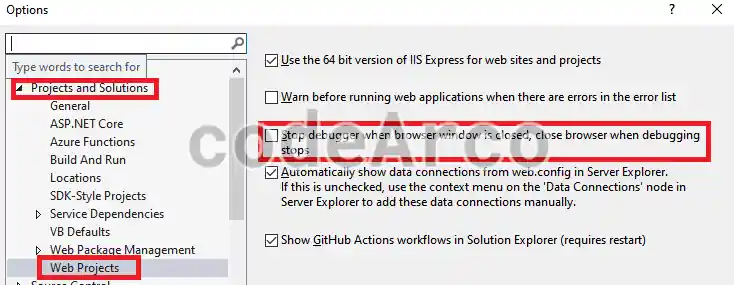
One of the first things I configure in Visual Studio when I install it on a new computer is this option, I find it very annoying that the IDE stops a web application’s debugger when I close the browser window associated with that application.
This option allows two things at once:
- The Visual Studio debugger doesn’t stop if we close the browser window of the associated web application. This is especially annoying when we’re working, for example, with api’s and Postman. Imagine if you accidentally close the window associated with the api or simply close it on purpose to clean up, well, Postman will stop working because the web application has stopped because we closed the window.
- The web application opens in a separate tab and not in a new browser window. Another consequence of enabling this option is that, if you have the browser open, the web application will open in a new tab instead of a window. I also find it very useful for keeping everything more organized.
How to configure Visual Studio so it doesn’t stop when you close the browser
To prevent Visual Studio from automatically stopping the debugger if you close the browser follow these steps:
- Open “Tools”, “Options” via the top menu.
- Go to “Projects and Solutions”, “Web Projects”.
- Disable the “Stop debugger when browser window is closed” option in Visual Studio:

Disable stop debugger when browser window is closed - Click “OK” and verify the changes. To do this, relaunch your web application and verify these two points:
- That when you launch the web application it opens in a new tab in your default browser instead of a new window.
- That the debugger doesn’t stop if you close the window, it only stops if you press the “Stop” button at the top.