If you like to read, you probably use an ereader. And if you have an Amazon Kindle, you’ve probably wondered how to change and install new letter styles on the device. Well, below is a quick guide with the steps to install new fonts on your Amazon Kindle.
Download fonts from the Internet
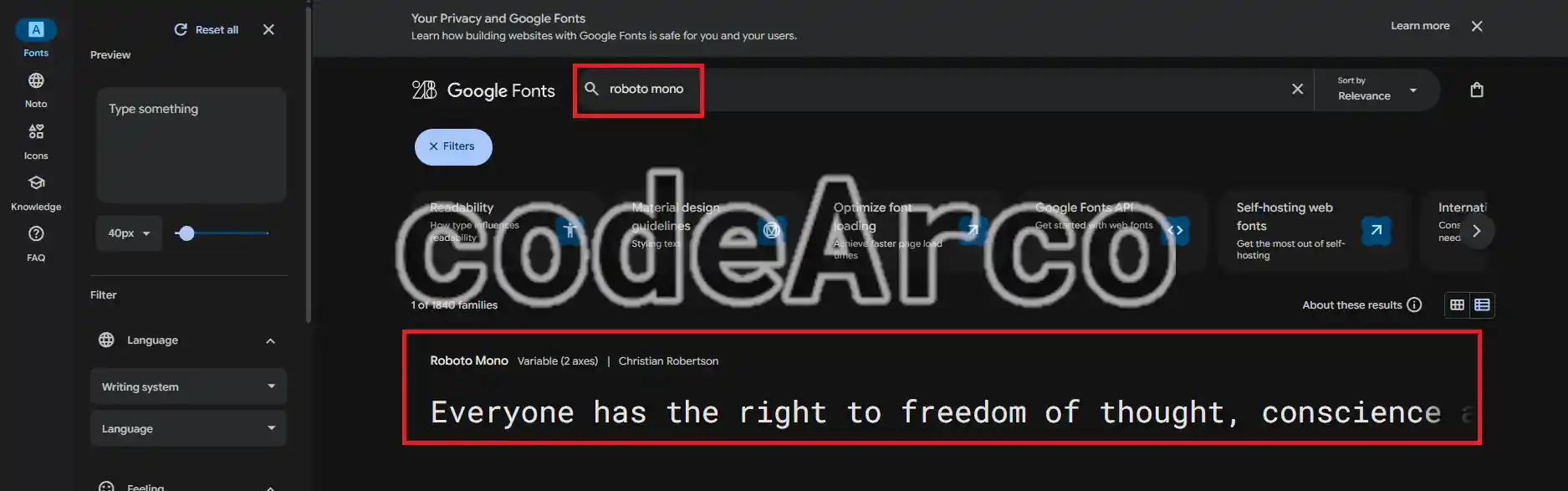
The first thing we’ll do is download the font we want from the Internet. As you can see, there are many download websites. In my case, I’ll use the Google website for text fonts and, within it, I’ll search for the “Roboto Mono” font family:
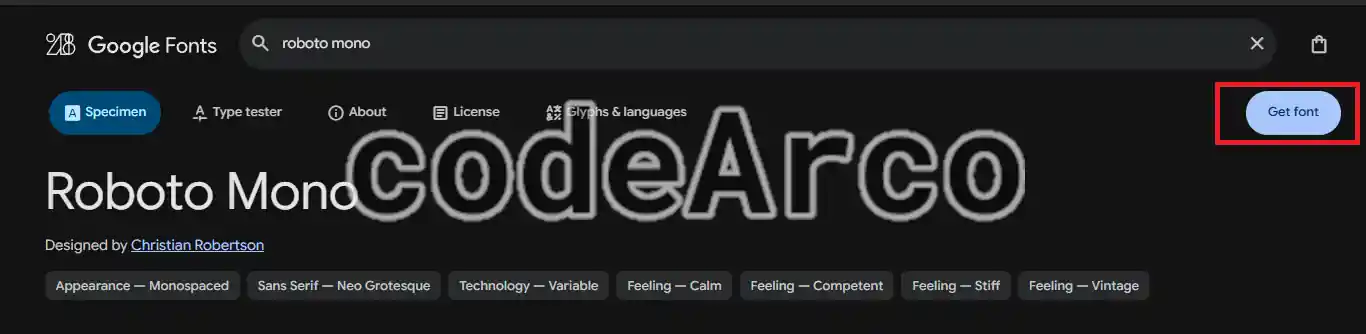
Once we have the specific letter family, we’ll click on it and then click the “Get Font” button in the top right corner to download it:
The second step after downloading the files is to unzip them. As you can see, there are several:
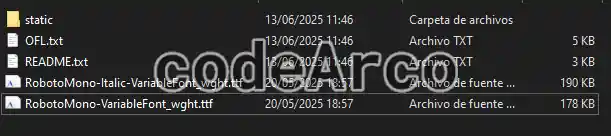
The files we’re interested in are those ending in .ttf or .otf. Additionally, if your download includes them, it’s recommended to install the full font files.
In the case of the Google download page, it’s recommended to use those that contain the term VariableFont, located in the root folder, and avoid files in the static folder. In our case, we’ll use the files “RobotoMono-Italic-VariableFont_wght.ttf” and “RobotoMono-VariableFont_wght”.
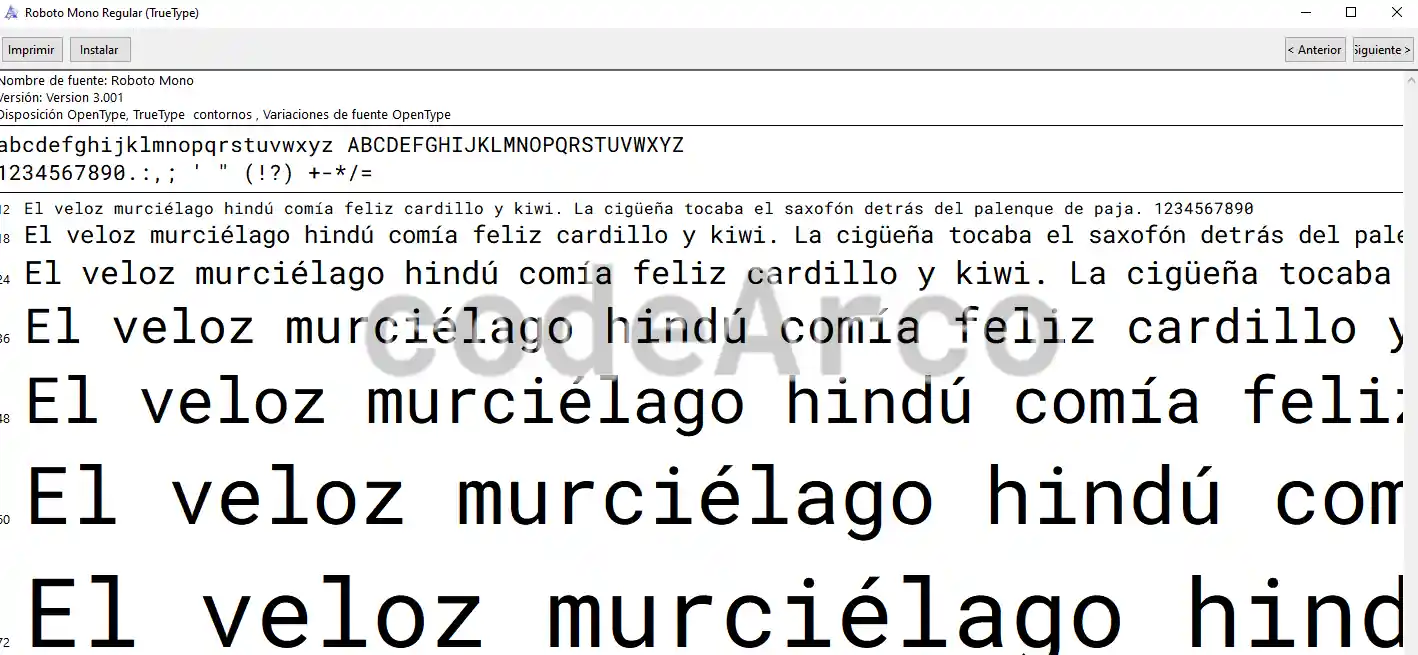
Remember that you can preview the downloaded files by double-clicking them:
How to install new text fonts on Kindle
Once we have downloaded, unzipped and selected the text files, we must install them on our Amazon Kindle using the following steps:
- Connect the Kindle to the computer via the USB cable.
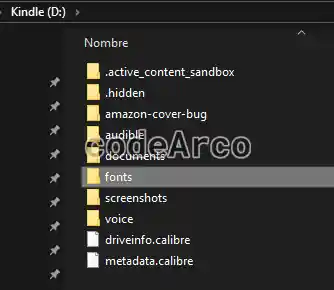
- Locate the “fonts” folder inside your ereader:

Fonts folder to install new letters on your Kindle - Copy the
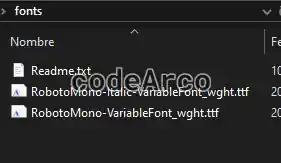
.ttfor.otffiles you downloaded in the previous section:

Copy files to the ereader folder
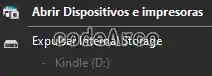
- Eject your Kindle device just as you would a USB or external hard drive:

Eject Kindle USB in Windows
How to change text fonts on Amazon Kindle
Finally, after copying the files to your ereader, turn on the device and follow the steps to change the font style on your Kindle:
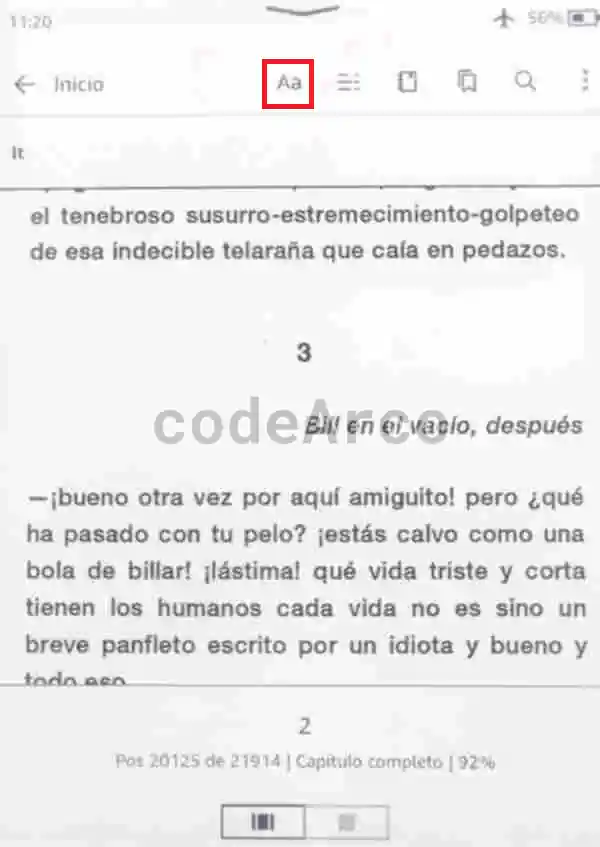
- In any book you are reading, click on the top of the Kindle to access the settings and, in the menu that appears, select the “Aa” icon:

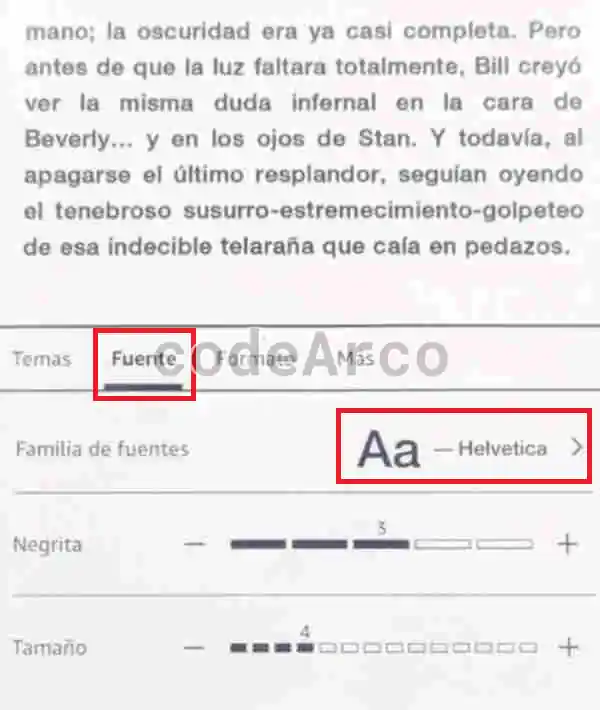
How to change letter style on your Kindle - Select the “Font Family” option within the “Font” section:

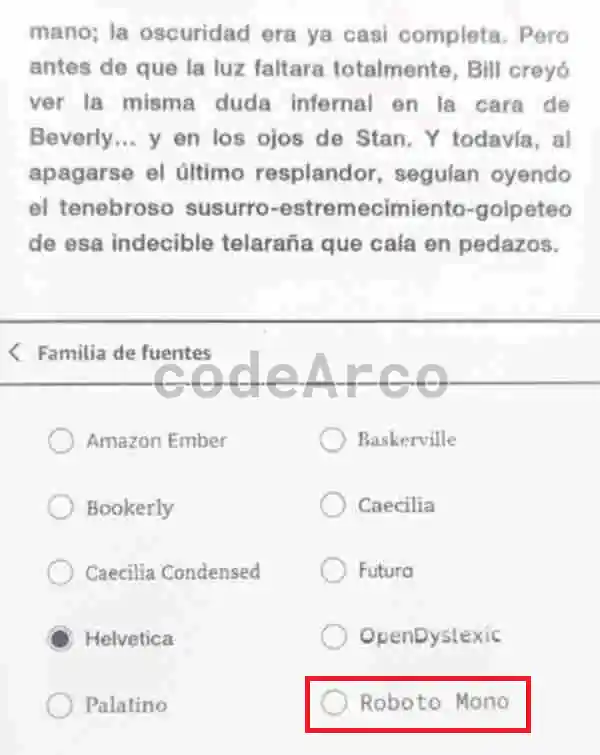
Select letter family on your ereader - Locate and select the new font style you just installed on your Kindle:

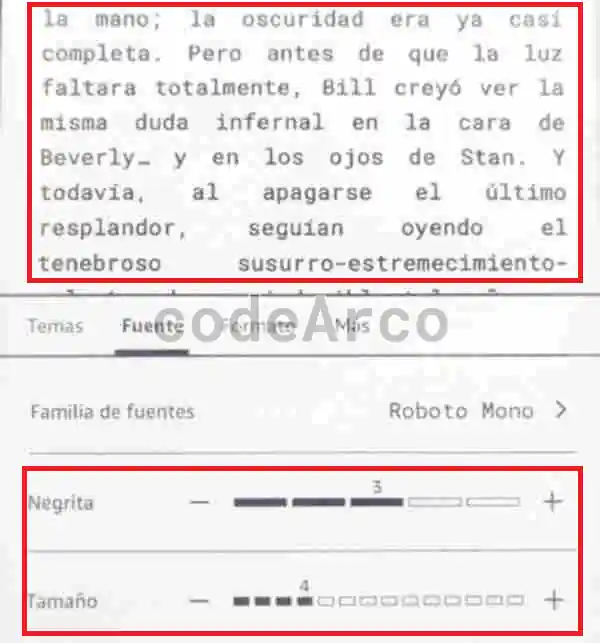
Select the newly installed letter on Kindle - Finally, verify that the changes have been applied and play around with the text size and bold to make it your own:

Custom font styles on ereader
This last point is important because downloaded fonts may not display or print correctly. If this happens, try repeating the process with a different letter family.
Also, remember that files that includeVariableFontin their name may not print correctly, if this happens, you should use the files in thestaticfolder.