
I’ve been working a lot with Azure Functions lately and the truth is that they give a lot of headaches compared to other types of applications such as .NET MVC applications or APIs.
Below we will analyze why it happens and how to fix the error “Exception while executing function: FunctionName Could not load file or assembly ‘PackageName, Version=6.0.0.0, Culture=neutral, PublicKeyToken=Token’. The system cannot find the file specified.”.
Why and how does this error happen?
This error occurs because we are using Azure Functions instead of other types of applications such as, for example, a .NET API or an MVC application.
Azure Functions have a more limited, restricted or smaller execution environment than other types of applications and this, in turn, causes them to present more problems, errors and incompatibilities with the libraries that we install in them.
For this reason, errors like the one presented in this article have never been seen in other types of .NET projects where their execution environment is broader and they have a larger base of pre-installed libraries at their disposal.
The main cause of these errors is that we are using, directly or indirectly, a library compatible with the .NET 6 version within a .NET 8 function or vice versa. In other words, the errors are caused because we are using libraries that are not in the limited execution environment of Azure functions. If we were in a normal project, such as an API or an MVC application, this type of incompatibility would be very difficult to see.
You can see it this way, an Azure function is designed to be a small piece of code that runs quickly and efficiently in the cloud (serverless) according to various triggers.
If we want speed and performance, they need to be optimized, and to optimize, it is necessary to cut or reduce somewhere. One of the points where this reduction occurs is in the execution environment itself, and this ultimately leads to more errors and incompatibilities.
One of the most dangerous problems that you must take into account is that these errors do not occur at compile or publication time, but rather at runtime.
The above means that your function will compile correctly, you will not have any problems when publishing, but when the part of code affected by the library is being executed, it will throw an exception.
Therefore, before analyzing the possible fixes to the error, I recommend that you be much more meticulous with the tests of an Azure Function than with a normal application.
My recommendation is that you perform a test for each library that your application uses. For example, if your Azure Function app uses Service Bus, Azure Cache for Redis, and Blob Storage, I recommend that, in addition to the functional tests that we always do, you perform a test for each of the technologies or libraries used.
Steps prior to fix the error
To fix the error “Exception while executing function, could not load file or assembly” it is necessary to know the following points beforehand:
- Version of .NET used by Azure Function. To do this, we will open the function in Visual Studio, double click on the name of the function and the .csproj will open. Another alternative is to open this file with a plain text editor.
In our case, the version of .NET used is 8:<Project Sdk="Microsoft.NET.Sdk"> <PropertyGroup> <TargetFramework>net8.0</TargetFramework> <AzureFunctionsVersion>v4</AzureFunctionsVersion> - Package that causes the error. The error occurs because it does not find a library or package. To find out the library that is causing the error, we must look at the message and notice what comes after “Could not load file or assembly”.
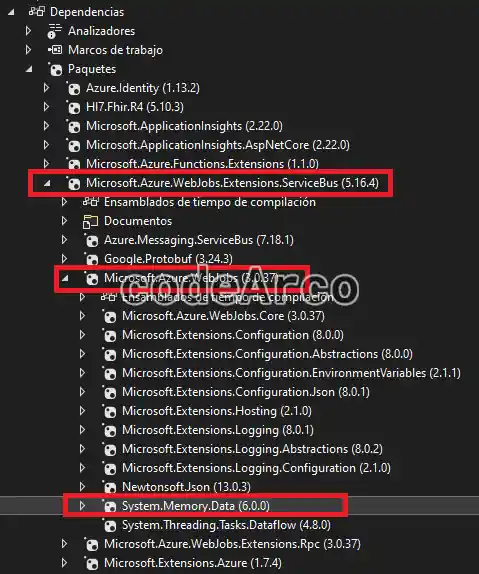
In our example the package is “System.Memory.Data”, version 6.0.0.Exception while executing function: FunctionName Could not load file or assembly 'System.Memory.Data, Version=6.0.0.0, Culture=neutral, PublicKeyToken=Token'. The system cannot find the file specified. - Where is the package that generates the error or who uses it. As a general rule, this error will not be given to a package that you have installed directly in your project, but rather it will be a child or transitional package of one that you have installed directly.
To find it, we will go to “Dependencies”, “Packages” and within the list we will expand nodes until we find it. We must look at the root package that contains it.
In our project, the package is quite deep in the dependency tree and belongs to the root package “Microsoft.Azure.WebJobs.Extensions.ServiceBus”.

Package that generates error Could not load file or assembly - When the error appeared. Although it is not a mandatory point, it is very interesting to know from what moment or commit the error started and what caused it.
Generally we will find a scenario where everything worked correctly before and from when we installed a package the error and our suffering began.
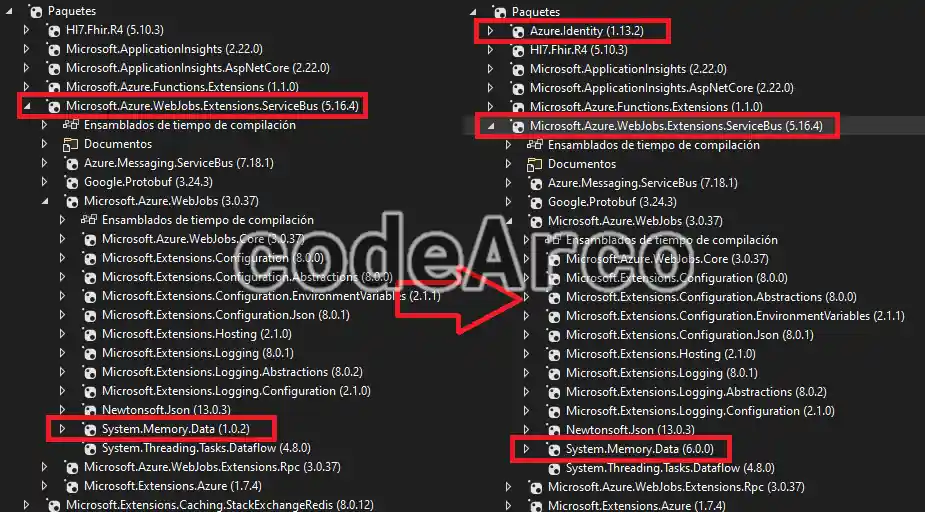
Following our example we can see that the error started to occur when we installed the “Azure.Identity” package for another development.
If we compare the packages we will realize that before the installation of “Azure.Identity” we had version 1.0.2 of “System.Memory.Data” which did not generate any error and, after the installation of the new package, it has been changed to version 6.0.0 which does generate an error:

When the error the system cannot find the file specified occurred
With all the above data we can now proceed to see the fixes to the error “Could not load file or assembly, the system cannot find the file specified”.
Check compatibility of the newly installed package
In our case we have seen that the error comes from the installation of a completely different package than the one that gives the error. Well, let’s check that the new package is compatible with our framework:
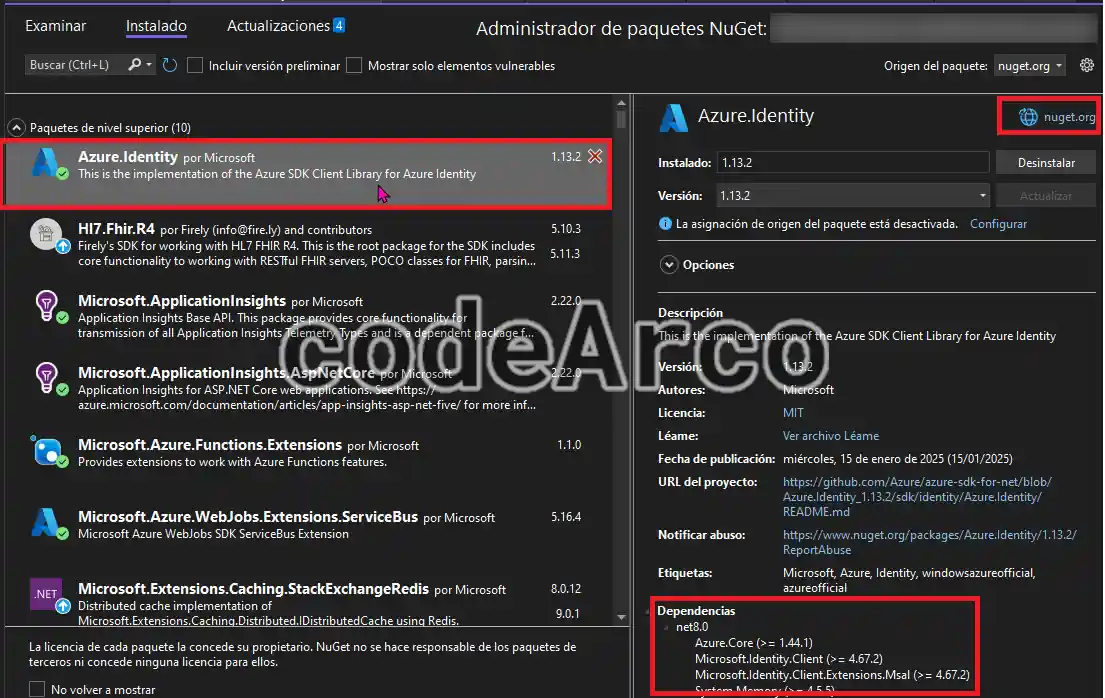
- Right click on the name of the function, “Manage Nuget packages”.
- We select the one we just installed in the installed packages section, in our case “Azure.Identity”.

Check compatibility of newly installed package - Check that below, in dependencies, the .NET version of your function appears.
You can also check it by clicking on the “nuget.org” link at the top right, this will open a page where you must check that the package is compatible with the .NET version of your function:

Review compatibility framework net Azure Functions
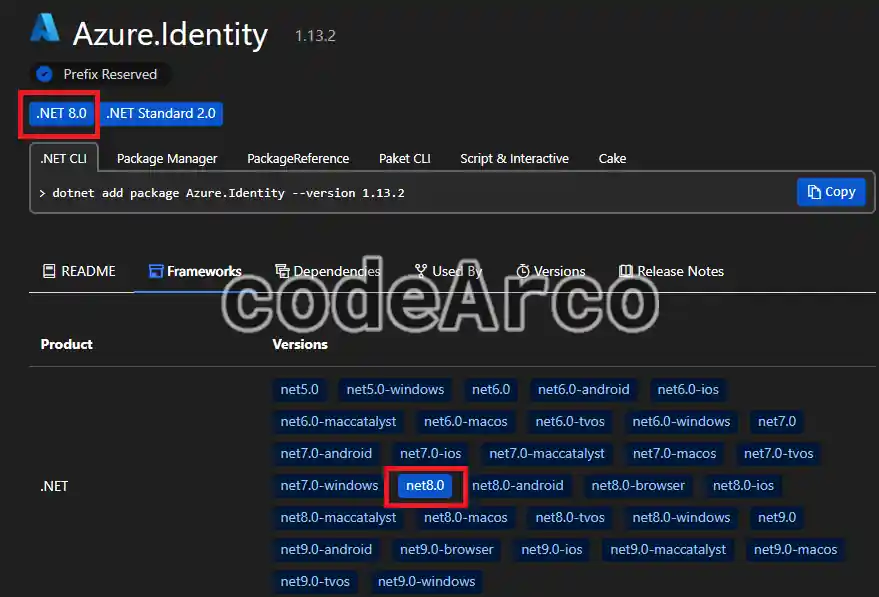
If the package you have installed is not compatible with the framework of your Azure Function you will have to update it to a version that is compatible or look for an alternative to that package. If you don’t know how to do it, don’t worry, we will see later.
Checking the compatibility of the root package
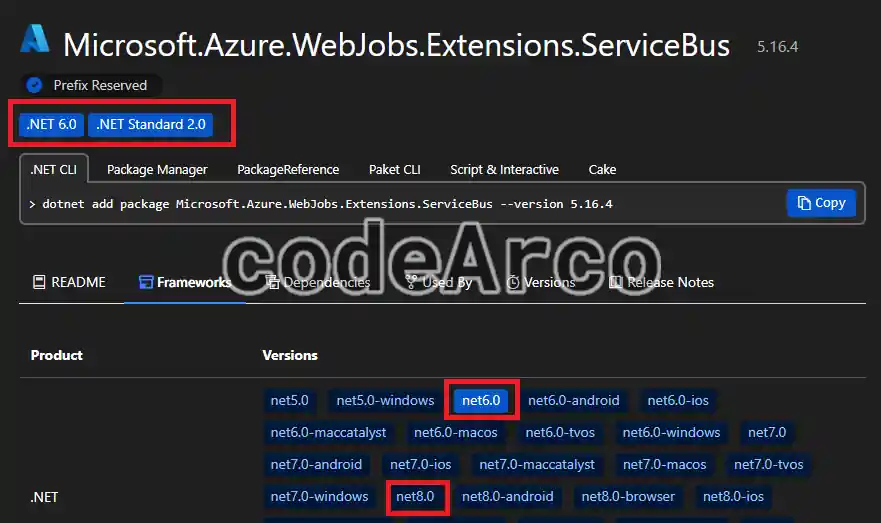
Do you remember that we previously checked the package that gives the error “System.Memory.Data” and we discovered that it is inside the root package “Microsoft.Azure.WebJobs.Extensions.ServiceBus”?.
Well, what we will do now is to verify the compatibility of the root package with the .NET version of the function as we have done in the previous section.
If you remember, we also mentioned that our function runs in the .NET 8 environment, well, the root package is not compatible with that framework:
The possible fixes to an incompatible package are:
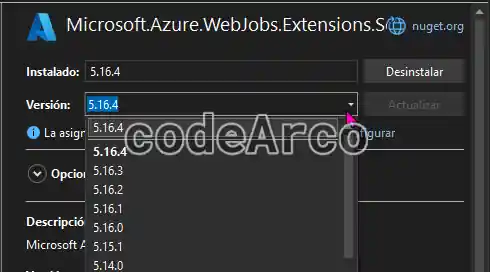
- Search for and install package updates through the Nuget package manager.
In our case, this package has no more updates and, therefore, this fix does not work for us:

Incompatible package fix in Azure Functions - Search for an alternative to the incompatible package that is compatible with your framework and that meets your requirements and needs. Obviously, you will have to change code in your Azure Functions.
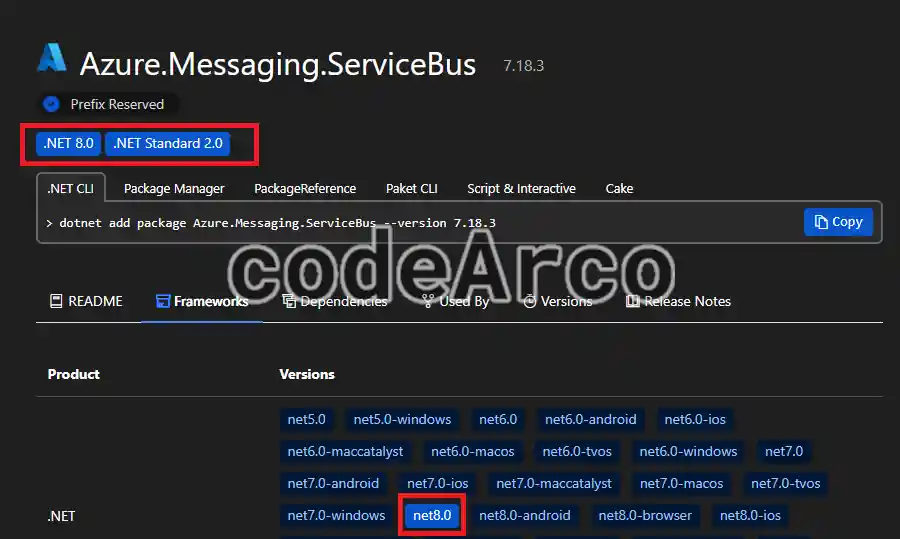
In our case, the alternative to the incompatible package is “Azure.Messaging.ServiceBus” which, as you can see, is compatible with .NET 8:

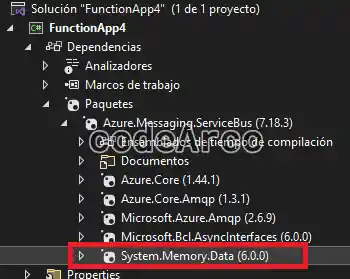
Package compatible with development framework - However, the above is not entirely true, look what happens when I install this package in a completely new project.
Yes my friends, it has installed the “System.Memory.Data” package version 6.0.0, which is causing the error “Exception while executing function, could not load file or assembly”.
Therefore, this fix does not work for us in our specific case, but perhaps it will work for you.

Alternative to the root package not compatible with the framework
Manually install the package that is giving the error
This fix is simple, but it doesn’t always work. It consists of analyzing the error, seeing which package is giving the error and manually installing it in the .csproj:
- Read the error carefully and note the package and version that cannot be loaded or found.
Could not load file or assembly 'System.Memory.Data, Version=6.0.0.0, Culture=neutral, PublicKeyToken=Token'. - Add a line to the .csproj with the name and version that the error indicates:
<PackageReference Include="System.Memory.Data" Version="6.0.0.0" /> - Clean the project, recompile it, and, if necessary, upload it again.
Whether the previous steps have worked for you or not, also try to install an updated version of the package that is giving the error, always verifying that the version is compatible with your .NET version of Azure Functions.
If this option works, it is better to have the package updated than with an old version.
In my case, this fix has worked for me in some projects, although not in this one… If the same thing happens to you, I recommend that you continue reading.
Force the installation of the .dll in the project
This last fix always works for the error “Could not load file or assembly. The system cannot find the file specified.”. It simply consists of adding the following lines to your .csproj file, remember to change the name of the package that gives the error:
<ItemGroup>
	<FunctionsPreservedDependencies Include="System.Memory.Data.dll" />
</ItemGroup>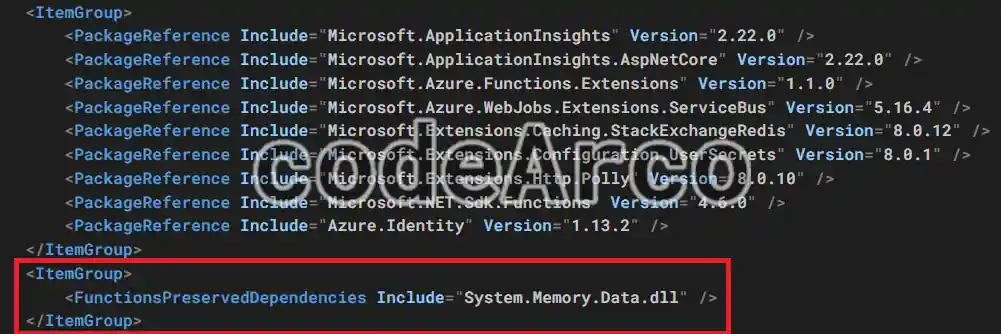
This line forces the Azure Function to use the .dll that you provide and not the one that the Azure Functions have in their execution environment.
Personally, I don’t like this fix and it should be used as a last resort. You may have compatibility issues with other packages, strange behavior, etc. The best thing to do is to update packages and, if there are no updates, look for alternatives. However, if you have tried all the previous fixes as in our example and none of them work for you, this is the only option.