
In this tutorial we’ll cover two important points about the appsettings.json file and .NET configuration files:
- How to easily convert
appsettings.jsonto an object so you can use the configuration in your .NET application. - A full guide on how to correctly use configuration files in .NET to achieve efficient, convenient and maintainable development and avoid future problems.
Throughout my professional career I’ve encountered certain practices that, although effective, are detrimental to application development in the long run. This step-by-step guide aims to provide you with a series of recommendations and tips for you to use in your .NET projects and achieve the following points:
- Efficient application development meaning that adding, removing or modifying configuration properties is a simple, fast and convenient process.
- Avoid errors in your applications. Depending on how things are done there will be a greater or lesser risk of runtime errors occurring when reading the configuration. We’ll try to minimize this point as much as possible.
To achieve all of the above points, in summary, my recommendation is that you use a single object that represents the full configuration and that it meets the following points:
- There should only be one C# class and one object that represents the full configuration, not several. This means that if we have multiple subclasses within the configuration, they will be within the unified C# class, they will not be independent.
- The conversion from
appsettings.jsonto the C# object is only performed once, not several times. This means that we cannot read specific properties or sections ofappsettings.json, the file is read and converted only once and then reused in the rest of the application. - To use and read the configuration in our application we will pass it through dependency injection to the classes and methods of our project. This point is optional but highly recommended.
Example project with codebase
To illustrate the steps in this guide on configuration files in .NET we’ll use a new .NET console project, although this tutorial can be applied to any type of .NET project with C# such as an API or an MVC application.
The reason I chose this type of project is because it’s the only one that, by default and as of today, doesn’t come preconfigured to handle the appsettings.json file. This will allow us to start completely from scratch and learn all the necessary steps.
If you don’t know how to create a C# console project from Visual Studio here are the necessary steps:
- Open Visual Studio and select “Create new project”.
- Give it a descriptive name and click “Next”.
- Select the framework, in this case we’ll use “.NET 8”, click “Create”.
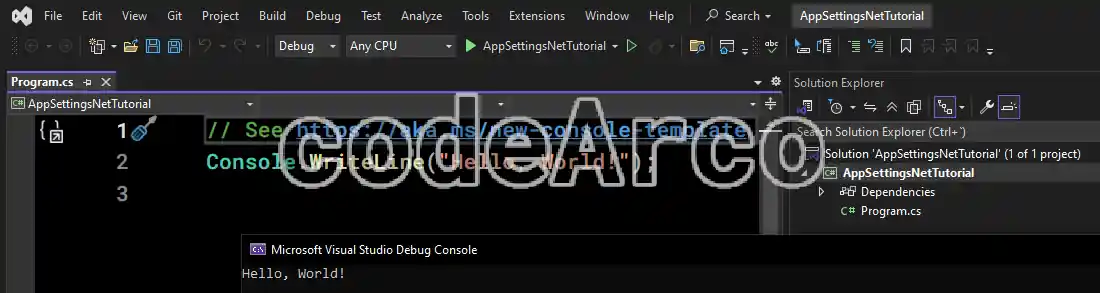
- Run the project and verify that it works correctly:

Example project with codebase for appsettings json
Create the appsettings.json file to store settings
Once we’ve created the .NET project it’s time to create our appsettings.json configuration file.
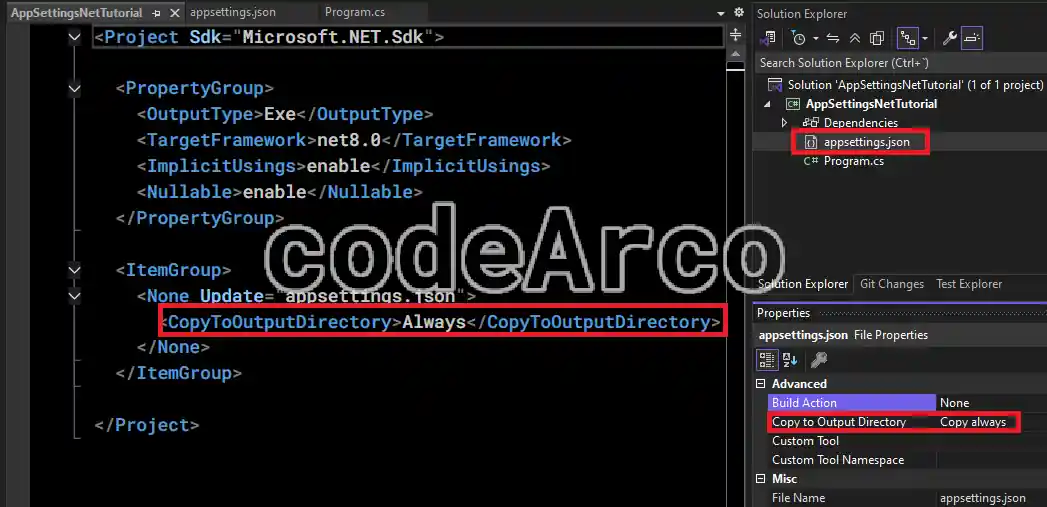
The first step is to add the file to the project: right-click, “Add”, “New Item”. Select any file type and, in the name, type appsettings.json. It’s important to use this name to follow the .NET standard and create it in the project root, although you could name it differently or create it elsewhere.
Second, make sure that in the file properties or in the .csproj you have set the CopyToOutputDirectory property to the value Always, otherwise you will get an error when you publish the console application and it will try to access the file because it will not find it:
Finally, as the last step in this section, fill in your configuration file with the properties and values you need. Below is a full example of appsettings.json with simple and complex properties:
{
  "ExampleString": "ExampleStringValue",
  "ExampleInt": 3,
  "ExampleObject": {
    "Property1": "Value1",
    "Property2": 42
  },
  "ExampleStringList": [
    "String1",
    "String2",
    "String3"
  ],
  "ExampleObjectList": [
    {
      "Header": {
        "Title": "Header1",
        "Description": "Description1"
      },
      "Body": {
        "Content": "Body1",
        "Details": 100.15
      }
    },
    {
      "Header": {
        "Title": "Header2",
        "Description": "Description2"
      },
      "Body": {
        "Content": "Body2",
        "Details": 200.25
      }
    }
  ]
}
Designing a C# class to represent appsettings.json
If we want to convert the appsettings.json file to an object the next step is obviously to design and create the C# class that will represent our configuration file in the project root. In fact this step could be done before the previous section, it’s a matter of taste.
Below is the full example of the C# class corresponding to the JSON file we created in the previous section:
namespace AppSettingsNetTutorial
{
    public class Config
    {
        public string ExampleString { get; set; }
        public int ExampleInt { get; set; }
        public ExampleObject ExampleObject { get; set; }
        public List<string> ExampleStringList { get; set; }
        public List<ExampleObjectListItem> ExampleObjectList { get; set; }
    }

    public class ExampleObject
    {
        public string Property1 { get; set; }
        public int Property2 { get; set; }
    }

    public class ExampleObjectListItem
    {
        public Header Header { get; set; }
        public Body Body { get; set; }
    }

    public class Header
    {
        public string Title { get; set; }
        public string Description { get; set; }
    }

    public class Body
    {
        public string Content { get; set; }
        public double Details { get; set; }
    }
}
Keep in mind that class names can have any value (such as ExampleObject and ExampleObjectListItem) but property names (such as Property1 and Property2) must exactly match the key you have in the appsettings.json file.
Also, as a tip or warning, try to keep this class as simple as possible and avoid complex or unnecessary things like inheritance. This will help you avoid errors when converting the appsettings.json file to an object.
Install NuGet packages needed for conversion
The next step is to install the NuGet packages to convert the appsettings.json file to a C# object.
To do this simply right-click on your project or solution in Visual Studio and select the “Manage NuGet Packages” option. Within the manager go to the “Browse” tab and search for and install the latest version of the following packages:
- Microsoft.Extensions.Configuration.Json
- Microsoft.Extensions.Configuration.Binder
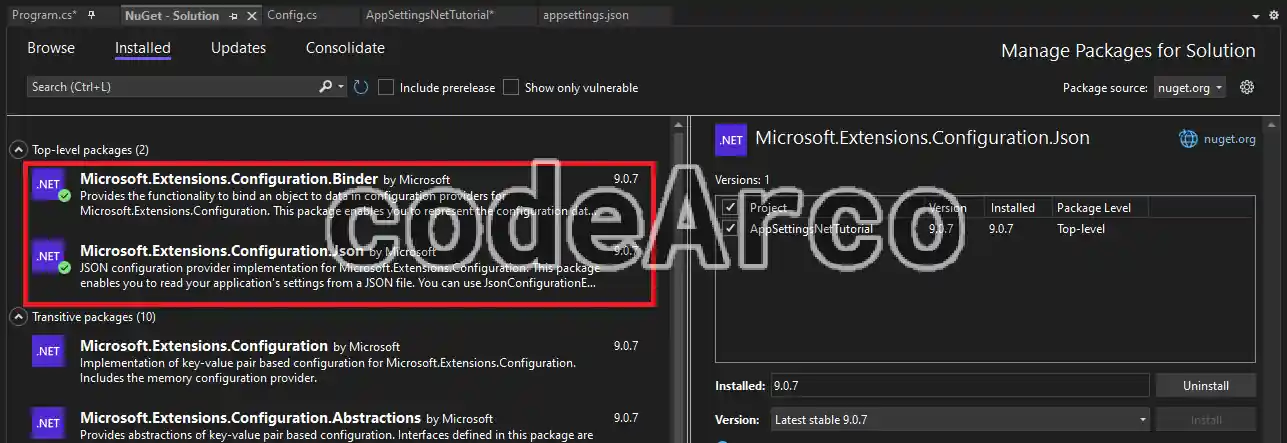
Finally add them to your Program class using the using statement:
using Microsoft.Extensions.Configuration;

internal class Program
{
    ...
}
As an alternative to the NuGet package manager you can add the following lines to your .csproj file:
<ItemGroup>
  <PackageReference Include="Microsoft.Extensions.Configuration.Binder" Version="9.0.7" />
  <PackageReference Include="Microsoft.Extensions.Configuration.Json" Version="9.0.7" />
</ItemGroup>
Code to convert appsettings.json to a C# object
We have finally reached the most important part of the tutorial, the point where we will convert the appsettings.json file to a C# object through code. For this, there are two alternatives, Get vs Bind:
- Get method, safer and more restrictive. If there are errors in the JSON this method will throw more exceptions than
Bind, this may or may not be an advantage depending on your intended use. - Bind method, more flexible and error-tolerant. In contrast to the previous method, if there are minor errors in the JSON, it initializes its properties to the default value. Again, this can be an advantage or a disadvantage depending on your use case.
Another difference between Get and Bind, in addition to the above, is that Get creates a completely new object from the appsettings.json file while Bind populates an existing object with whatever is in appsettings.json. We can see this in two ways: it can be a disadvantage, since populating an existing object with configuration values can result in “dirty” values, which is a risk. However, if we really need this functionality of populating a previously created object, only Bind can provide it and it would be an advantage over Get.
Whichever option you choose, as a first step, you must convert your Program.cs class to the main format because by default it does not come with this format:
using AppSettingsNetTutorial;
using Microsoft.Extensions.Configuration;

internal class Program
{
    private static void Main(string[] args)
    {
        ...
    }
}
As a second step you will need to create a ConfigurationBuilder to read from the appsettings.json file within the Main method above:
var build = new ConfigurationBuilder()
.AddJsonFile("appsettings.json")
.Build();
Thirdly, you have to use the Get or Bind method taking into account that they have different codes to perform the conversion:
// Alternative 1
var config1 = build.Get<Config>();

// Alternative 2
var config2 = new Config();
build.Bind(config2);
And finally I recommend that you run tests to verify that your objects are filled with the JSON values:
// Output
Console.WriteLine($"config1: {config1?.ExampleObjectList.FirstOrDefault()?.Header.Description}");
Console.WriteLine($"config2: {config2.ExampleObjectList.FirstOrDefault()?.Header.Description}");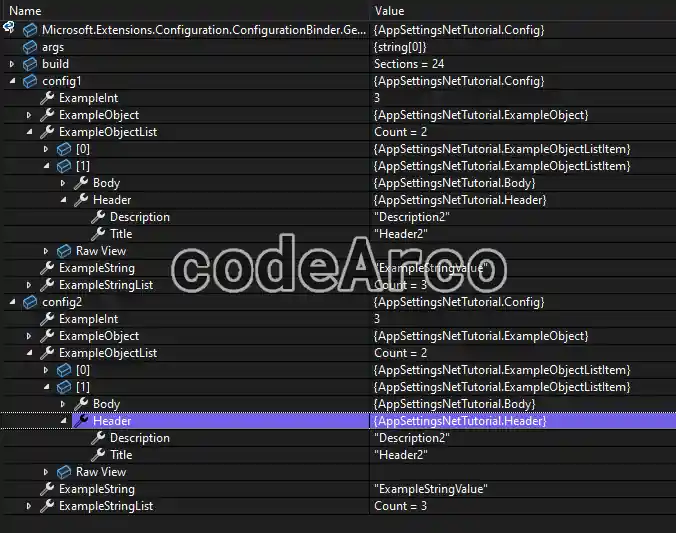
The full code to convert to a C# object from appsettings.json can be found in the linked GitHub repository.
Use dependency injection for configuration
Although this step is optional, it is highly recommended that you use dependency injection in your console application to send the configuration object to all your classes and methods. If you want to know how to do this you can check out the linked tutorial.
Using dependency injection will allow you, among other things, to keep your code clean and develop quickly. To add new properties or modify existing ones you only need to modify the appsettings.json and Config.cs files, nothing else.
The full code to convert appsettings.json to a C# object using dependency injection is as follows, although you can also check it out in the example GitHub repository:
using AppSettingsNetTutorial;
using AppSettingsNetTutorial.Services;
using Microsoft.Extensions.Configuration;
using Microsoft.Extensions.DependencyInjection;

internal class Program
{
    private static void Main(string[] args)
    {
        var build = new ConfigurationBuilder()
        .AddJsonFile("appsettings.json")
        .Build();

        // Alternative 1
        var config1 = build.Get<Config>();

        // Alternative 2
        var config2 = new Config();
        build.Bind(config2);

        // Output
        Console.WriteLine($"config1 from Program: {config1?.ExampleObjectList.FirstOrDefault()?.Header.Description}");
        Console.WriteLine($"config2 from Program: {config2.ExampleObjectList.FirstOrDefault()?.Header.Description}");

        // Send config with dependency injection
        var services = new ServiceCollection();
        services.AddSingleton<Config>(config1);
        services.AddSingleton<IServiceDatabase, ServiceDatabase>();

        // Call service
        var serviceProvider = services.BuildServiceProvider();
        var serviceDatabase = serviceProvider.GetService<IServiceDatabase>();
        serviceDatabase.SaveData("Sample Data");
    }
}
And then in the service we access the configuration object as follows:
namespace AppSettingsNetTutorial.Services
{
    public class ServiceDatabase : IServiceDatabase
    {
        private Config _config;

        public ServiceDatabase(Config config)
        {
            _config = config;
        }
        public bool SaveData(string data)
        {
            // todo logic
            Console.WriteLine($"config1 from ServiceDatabase: {_config.ExampleObjectList.FirstOrDefault()?.Header.Description}");

            return true;
        }
    }
}
Summary of best practices for reading appsettings.json
Finally I’m going to list a series of best practices for the appsettings.json file to keep in mind (or bad practices to avoid) that I’ve gathered during my experience as a .NET developer:
- Use a single C# class and an object that unifies all properties and subclasses or, in other words, don’t split the configuration into several separate classes with independent objects.
This type of code is very common, you should avoid it because it’s very messy and confusing:var build = new ConfigurationBuilder() .AddJsonFile("appsettings.json") .Build(); // Avoid this !!! var obj1 = build.GetSection("Section1").Get<Section1>(); var obj2 = build.GetSection("Section2").Get<Section2>(); Method(obj1, obj2); - Use the
buildvariable only once, not multiple times. In other words, the JSON is only converted and accessed once.
I also often find that theIConfiguration buildvariable is passed to other classes and methods so that later, whenever a configuration value needs to be read, it is used to access specific values from the JSON.
Avoid passing the variable to other methods and classes, instead you should pass the full C# object with all the configuration and read its properties:IConfiguration build = new ConfigurationBuilder() .AddJsonFile("appsettings.json") .Build(); // Avoid this !!! var a = build.Get<Config>().ExampleInt; var b = build["ExampleObject:Property1"]; Method(a, b); - Avoid the
GetSectionmethod. What’s the point of using theGetSectionmethod to read a portion ofappsettings.jsonif we have a common class that represents our full configuration? - Avoid reading and sending specific properties. If we have a single object with all the properties and subclasses it makes no sense to access specific properties through the
buildvariable using lines similar tobuild["ExampleObject:Property1"];. It also makes no sense to send those specific properties to other methods and classes, what you should do is send the full object and access its properties. - Avoid reading values by their string key. Use, again, the object with the full configuration and access its properties. Reading by string key is very prone to human error and makes it difficult to create and modify configuration properties.
Imagine, in the following example, what would happen if we wanted to modify the name of the “ExampleInt” property, we would have to search for it throughout the code and modify it by hand:IConfiguration build = new ConfigurationBuilder() .AddJsonFile("appsettings.json") .Build(); // Avoid this !!! int a = Int32.Parse(build["ExampleInt"]); string b = build["ExampleObject:Property1"]; Method(a, b); - Avoid unnecessary conversions. If we have a class that represents all the information well-structured and defined with its correct data types… what’s the point of doing this conversion
var a = Int32.Parse(build["ExampleInt"])? - Avoid reading JSON without converting it to an object using
GetorBind. Although it’s not very common when dealing with the configuration of a C# application, there are other methods for reading and modifying JSON that don’t use theIConfiguration buildvariable, avoid them whenever possible. - Use dependency injection for configuration. Although it’s not mandatory and we can do it manually by sending the object as a parameter, it’s much cleaner with this method as we saw in the previous section.